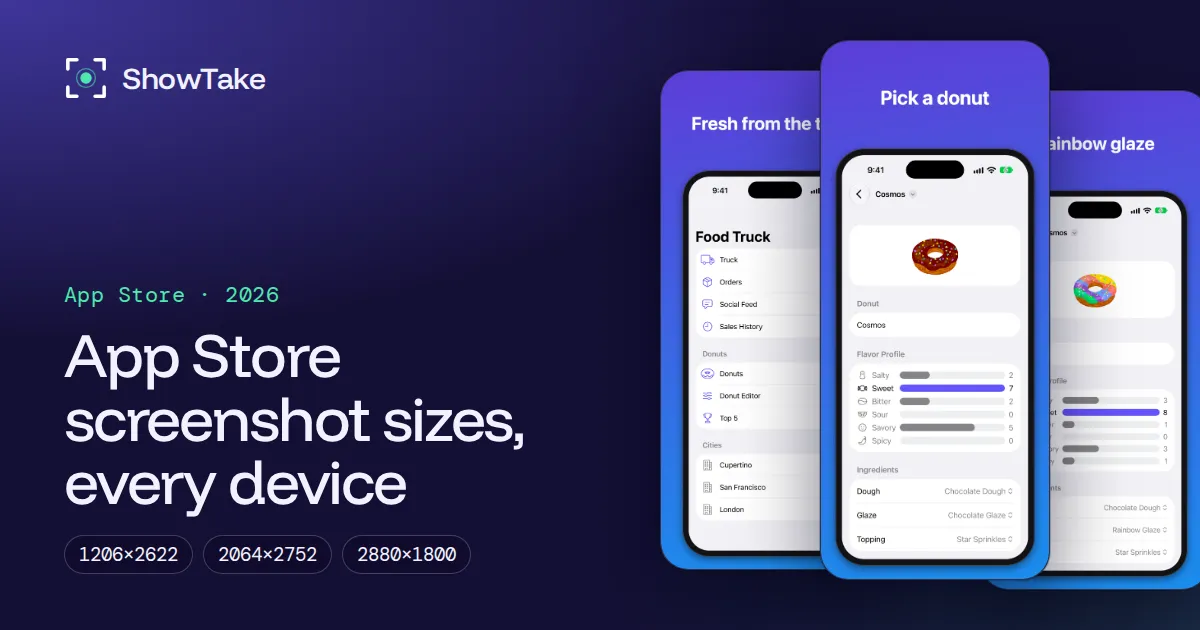
The only iPhone screenshot size Apple requires in 2026 is 1206×2622 or 1179×2556 pixels (portrait), the "iPhone with Dynamic Island, medium display" class. If your app runs on iPad, you also need 2064×2752 or 2048×2732 for the 13-inch iPad, and Mac apps need one 16:10 size such as 2880×1800. Everything else is optional: App Store Connect scales your largest required set down to older devices.
That is a change from the advice most guides still give (upload 6.9-inch or 6.5-inch first), so below are the full tables from Apple's screenshot specifications page, checked on November 12, 2026, plus the upload rules and a tested way to capture every size.
The short answer: what you must upload
| Platform | Required display class | Portrait size (pixels) | Landscape size (pixels) |
|---|---|---|---|
| iPhone | Dynamic Island, medium display (iPhone 17, 17 Pro, 16, 16 Pro, 15, 15 Pro, 14 Pro) | 1206×2622 or 1179×2556 | 2622×1206 or 2556×1179 |
| iPad (if the app runs on iPad) | 13-inch iPad | 2064×2752 or 2048×2732 | 2752×2064 or 2732×2048 |
| Mac (Mac apps) | Any 16:10 size | not accepted | 2880×1800, 2560×1600, 1440×900 or 1280×800 |
| Apple TV | 1080p or 4K | not accepted | 1920×1080 or 3840×2160 |
| Apple Vision Pro | 4K | not accepted | 3840×2160 |
For each size you need at least 1 and at most 10 screenshots per language, as .png, .jpg or .jpeg, with no alpha channel or transparency. App Store Connect rejects the upload, not the review, when the pixels or the alpha are wrong, so you find out fast.
Every iPhone screenshot size
Apple no longer lists iPhones by inches. It groups them by display type, and each class falls back to another one when you leave it empty. The inch labels in brackets are the common names, not Apple's.
| Display class (Apple) | Models | Portrait | If you leave it empty |
|---|---|---|---|
| iPhone Duo, outer display | iPhone Duo | 1398×2034 | Optional now; required from April 2027 for apps built with the iOS 27.1 SDK |
| iPhone Duo, inner display | iPhone Duo | 2007×2853 | Same as the outer display |
| Dynamic Island, large (6.9", 6.7", 6.5" Air) | iPhone Air, 18 Pro Max, 17 Pro Max, 16 Pro Max, 16 Plus, 15 Pro Max, 15 Plus, 14 Pro Max | 1320×2868, 1290×2796 or 1260×2736 | Scaled from Face ID, large |
| Face ID, large (6.7", 6.5") | 14 Plus, 13 Pro Max, 12 Pro Max, 11 Pro Max, 11, XS Max, XR | 1284×2778 or 1242×2688 | Required only if you skip Dynamic Island, large |
| Dynamic Island, medium (6.3", 6.1") | 18 Pro, 17 Pro, 17, 16 Pro, 16, 15 Pro, 15, 14 Pro | 1206×2622 or 1179×2556 | Required |
| Face ID, medium (6.1", 5.8", 5.4") | 17e, 16e, 14, 13 Pro, 13, 13 mini, 12 Pro, 12, 12 mini, 11 Pro, XS, X | 1170×2532, 1125×2436 or 1080×2340 | Scaled from Dynamic Island, medium |
| Home button, large (5.5") | 8 Plus, 7 Plus, 6s Plus, 6 Plus | 1242×2208 | Scaled from Face ID, medium |
| Home button, medium (4.7") | SE (2nd and 3rd gen), 8, 7, 6s, 6 | 750×1334 | Scaled from Home button, large |
| Home button, 4" | SE (1st gen), 5s, 5c, 5 | 640×1136 (640×1096 without status bar) | Scaled from Home button, medium |
| Home button, 3.5" | 4s, 4 | 640×960 (640×920 without status bar) | Scaled from Home button, 4" |
Landscape is the same pair of numbers swapped (for example 2622×1206). You can mix orientations inside one set, but a consistent orientation reads better in the store.
iPad screenshot sizes
| Display | Portrait | Landscape | Rule |
|---|---|---|---|
| 13-inch (iPad Pro M5, M4 and 12.9-inch 1st, 3rd to 6th gen; iPad Air 13-inch M4, M3, M2) | 2064×2752 or 2048×2732 | 2752×2064 or 2732×2048 | Required if the app runs on iPad |
| 12.9-inch (iPad Pro 2nd gen) | 2048×2732 | 2732×2048 | Scaled from 13-inch |
| 11-inch | 1488×2266, 1512×2316, 1668×2420, 1668×2388 or 1640×2360 | the same, swapped | Scaled from 13-inch |
| 10.5-inch | 1668×2224 | 2224×1668 | Scaled from 12.9-inch |
| 9.7-inch | 1536×2048 (1536×2008 without status bar) | 2048×1536 | Scaled from 10.5-inch |
An iPhone-only app does not need iPad screenshots at all. A universal app does, even if iPad is not your focus: App Store Connect will not let you submit without the 13-inch set.
Mac, Apple TV, Vision Pro and Apple Watch
- Mac: one of 1280×800, 1440×900, 2560×1600 or 2880×1800 (16:10, landscape only). Use 2880×1800 so the images stay sharp on Retina displays.
- Apple TV: 1920×1080 or 3840×2160.
- Apple Vision Pro: 3840×2160.
- Apple Watch: one size, used in every language: 422×514 (Ultra 4, Ultra 3), 410×502 (Ultra 2, Ultra), 416×496 (Series 10 to 12), 396×484 (Series 7 to 9), 368×448 (Series 4 to 6, SE) or 312×390 (Series 1 to 3).
The rules that get screenshots rejected
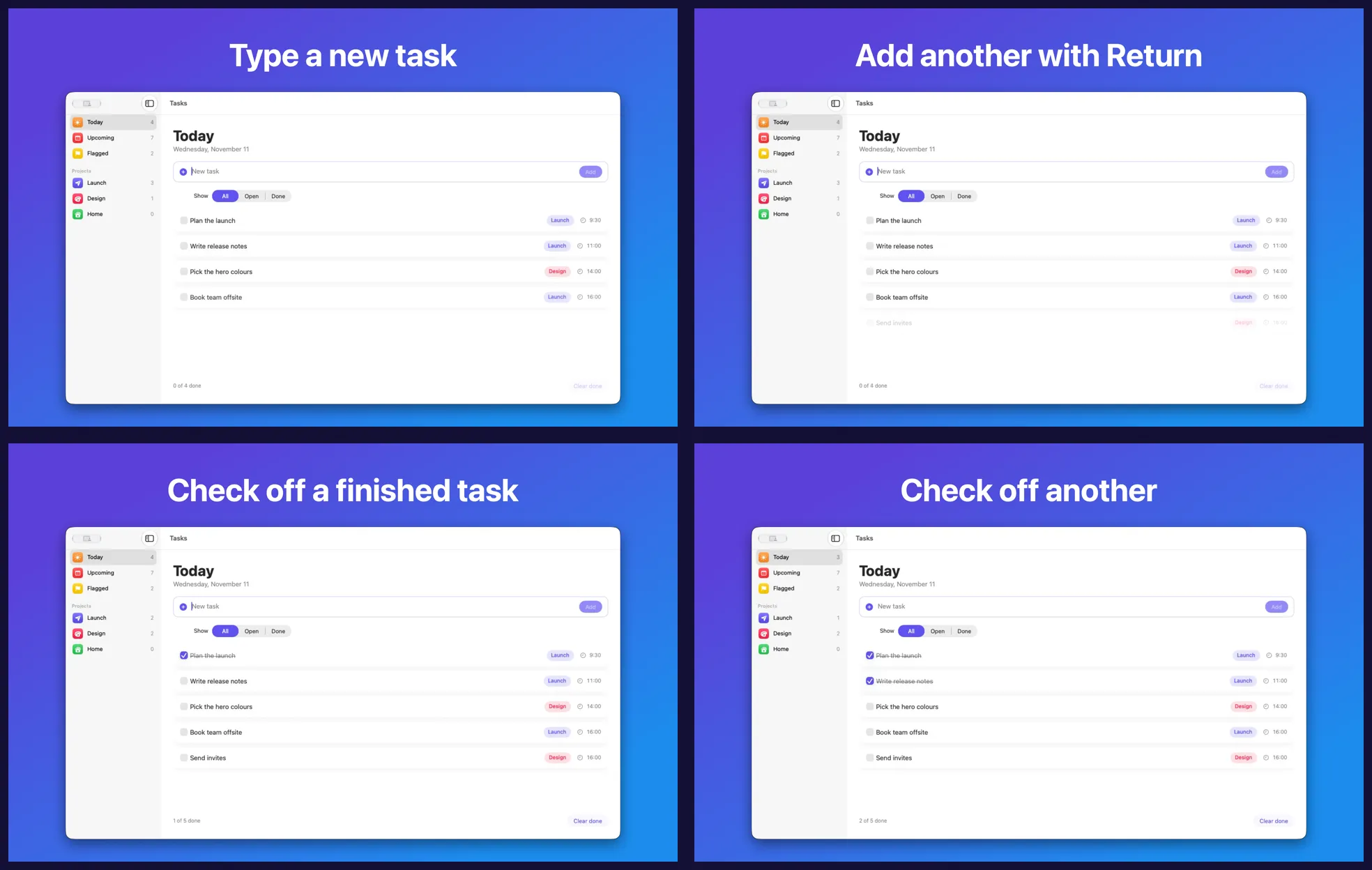
Pixel size is checked by App Store Connect on upload. The content rules are checked in App Review, under Guideline 2.3.3: screenshots "should show the app in use, and not merely the title art, login page, or splash screen." Text and image overlays are fine. Run through this list before you upload:
On a Mac you can check the alpha channel of a file with sips -g hasAlpha screenshot.png. If it prints hasAlpha: yes, flatten it, for example by re-exporting as JPEG.
Raw captures or designed screenshots?
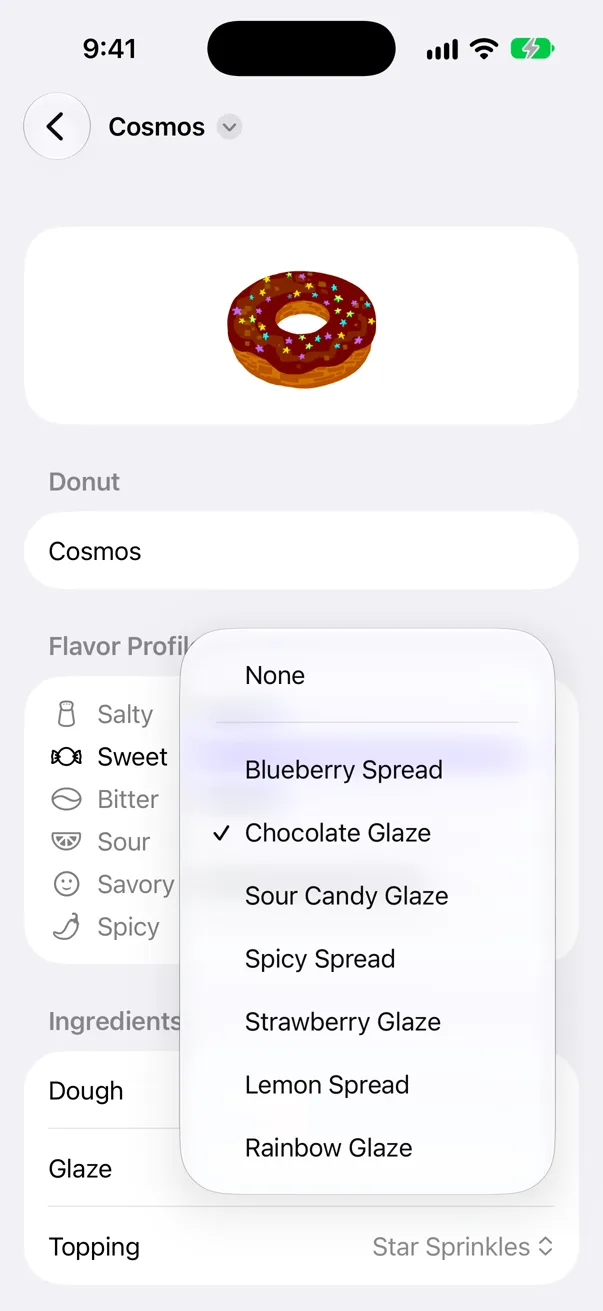
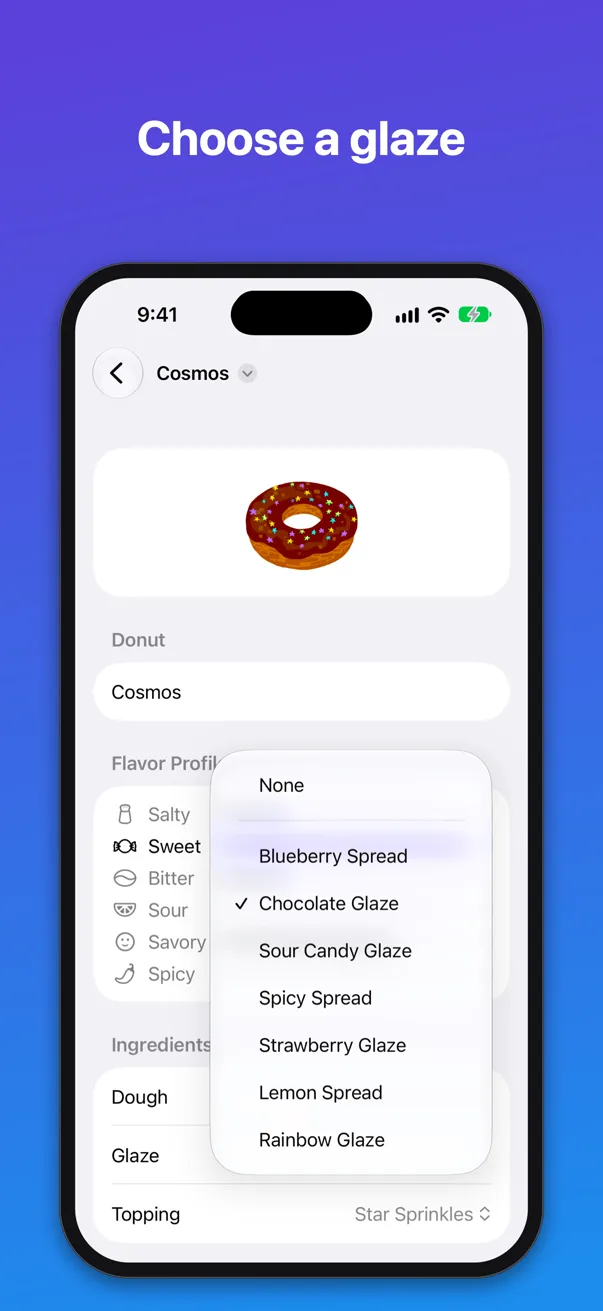
Both are allowed. A raw capture is the screen exactly as the app shows it. A designed (or "marketing") screenshot puts that capture on a background with a headline and, often, a device frame. Most top apps use designed screenshots because the headline tells people what they are looking at before they read anything else. Drag the slider to compare the same moment both ways:
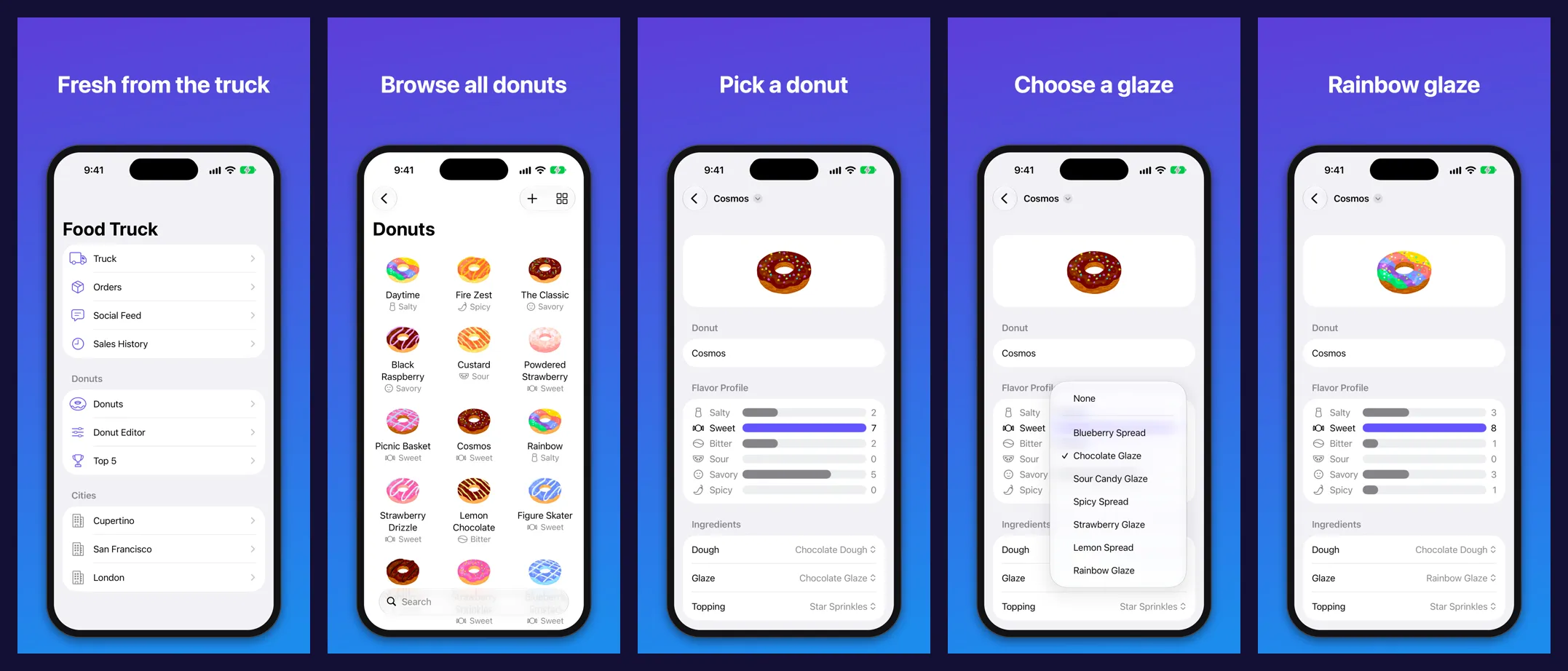
A good set tells one short story, one idea per screenshot, in the order a new user would discover the app:
How to capture screenshots at the exact size
The easiest way to get the right pixels is to capture them on a device of the required class, so nothing gets resized. In the iOS Simulator that means picking an iPhone 17 or iPhone 17 Pro (1206×2622) for the required set, and an iPad Pro 13-inch for iPad.
- Boot the right Simulator. In Xcode, open Window > Devices and Simulators, or run
xcrun simctl list devicesand boot an iPhone 17 Pro. - Clean up the status bar. Apple's marketing images show 9:41, full battery and full signal. Set it with
simctl status_bar(command below); the demo mode docs cover demo data too. - Fill the app with good-looking data. Empty states and "Test 1" rows are the most common reason screenshots look unfinished.
- Capture each screen. In Simulator press Command-S (File > Save Screen), or run
xcrun simctl io booted screenshot. The file is the device's native size: 1206×2622 on iPhone 17 Pro. - Check and upload. Check the size and alpha with
sips -g pixelWidth -g pixelHeight -g hasAlpha file.png, then drag the files into the version page in App Store Connect, under Previews and Screenshots.
# Clean status bar on the booted Simulator (undo with: xcrun simctl status_bar booted clear)
xcrun simctl status_bar booted override --time "9:41" \
  --dataNetwork wifi --wifiMode active --wifiBars 3 \
  --cellularMode active --cellularBars 4 \
  --batteryState charged --batteryLevel 100

# Save a screenshot at the device's native resolution
xcrun simctl io booted screenshot ~/Desktop/01-home.pngRepeat that for every screen, every device class and every language, and the work adds up: 7 screenshots × 2 iPhone classes × 1 iPad × 5 languages is 105 files. That is the part worth automating. (Recording video of the Simulator instead? See how to record the iOS Simulator.)
Let your coding agent make the whole set
ShowTake is a Mac app with a built-in MCP server. Your coding agent (Claude Code, Codex, Cursor) drives your app in the Simulator once, ShowTake records the take, and the same take gives you the App Store screenshots, the App Preview video and social cuts. It picks the settled end of each step, writes every file at Apple's exact pixels (sRGB, no alpha) and checks each one after export.
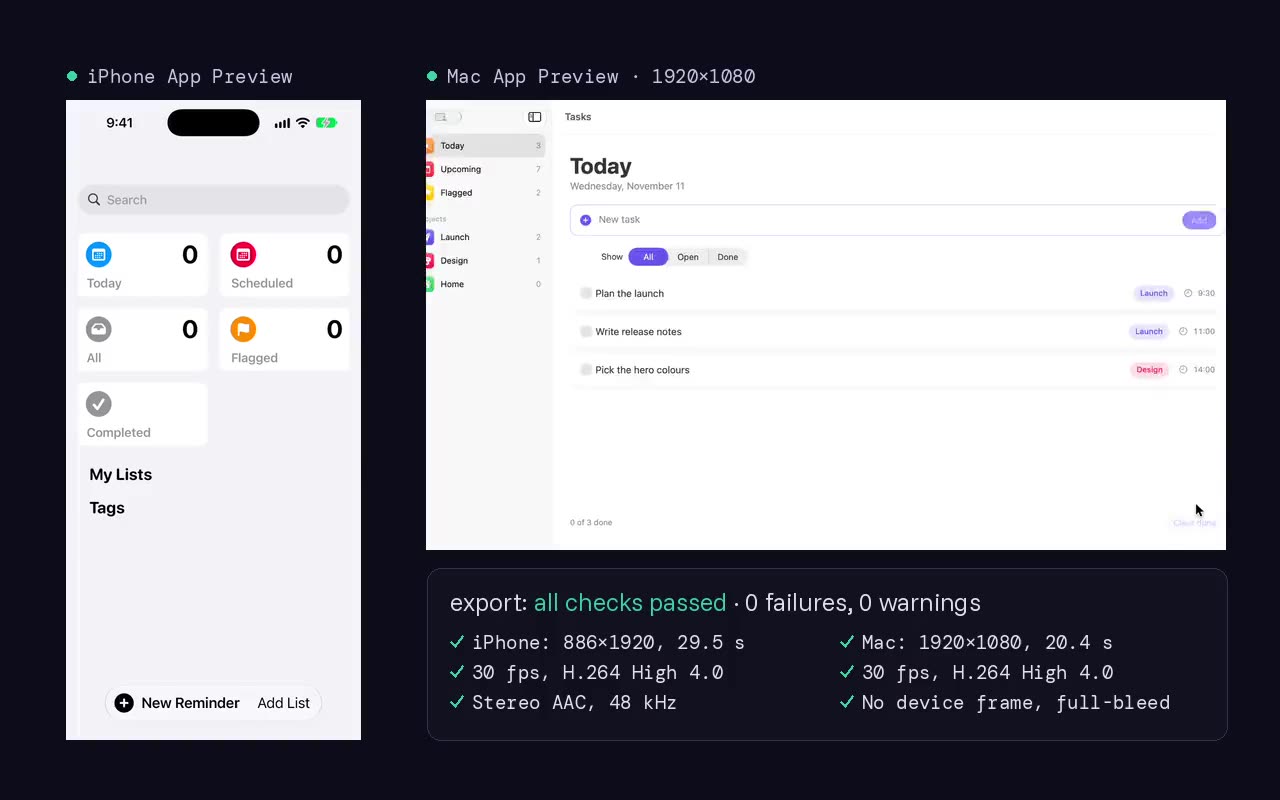
Ask for the set in plain words:
Paste into your agent after setting up ShowTake
Film a take of the main flow of my app, then make the App Store screenshots:
the required set with marketing style (headline per step on a background),
plus every other accepted size. Show me the files when they pass validation.These are the still sizes ShowTake writes, from the same data as the launch assets docs:
| Group | Slot | Size | Limits | Preset |
|---|---|---|---|---|
| App Store | iPhone 6.3" (Dynamic Island, medium) (required) | 1206×2622 (also 1179×2556) | 1-10 per language, PNG or JPEG, no alpha | appstore_screenshot_iphone_63 |
| App Store | iPhone 6.9" (Dynamic Island, large) | 1320×2868 (also 1290×2796, 1260×2736) | 1-10 per language | appstore_screenshot_iphone_69 |
| App Store | iPhone 6.5" (Face ID, large) | 1284×2778 (also 1242×2688) | 1-10 per language | appstore_screenshot_iphone_65 |
| App Store | iPhone Duo, outer and inner display | 1398×2034 (also inner 2007×2853) | Required from April 2027 for apps built with the iOS 27.1 SDK | appstore_screenshot_iphone_duo_outer |
| App Store | iPad 13" (required) | 2064×2752 (also 2048×2732) | Required when the app runs on iPad | appstore_screenshot_ipad_13 |
| App Store | Mac (16:10) (required) | 2880×1800 (also 2560×1600, 1440×900, 1280×800) | Required for Mac apps; landscape only | appstore_screenshot_mac |
| Launch sites | Product Hunt gallery | 1270×760 | At least 1 image, 3 or more suggested | producthunt_gallery |
| Launch sites | Product Hunt thumbnail (app icon) | 240×240 | JPG, PNG or GIF, up to 2 MB | producthunt_thumbnail |
| Launch sites | BetaList screenshot | 1600×1200 | Up to 5, about 4:3, 3 MB each | betalist_screenshot |
| Launch sites | Link preview (Open Graph) | 1200×630 | 1.91:1, under 5 MB for LinkedIn, 8 MB for Facebook | og_image |
| Social | X image post | 1600×900 | Up to 4 per post, 5 MB each | x_card |
| Social | LinkedIn image | 1200×627 | 1.91:1, up to 5 MB | linkedin_card |
| Social | Square post | 1080×1080 | 1:1 | square_card |
Screenshots and launch images are part of ShowTake Pro (from $9 a month, see pricing); filming and the X video export are free with a watermark. If you also need the video, read how to make an App Store preview video and check the file with the free App Preview checker.
Film it with your agent
ShowTake is a Mac app with a built-in MCP server: your coding agent drives your app and ShowTake renders the zooms, captions and every export size. Free to try, with a watermark.
Common questions
What is the required iPhone screenshot size for the App Store in 2026?
1206×2622 or 1179×2556 pixels in portrait (2622×1206 or 2556×1179 in landscape), the "iPhone with Dynamic Island, medium display" class. At least one screenshot at that size is required for every iPhone app; App Store Connect scales it down for older iPhones.
Do I still need 6.9-inch or 6.5-inch screenshots?
No, they are optional now. Apple's screenshot specifications page lists only the medium Dynamic Island class as required for iPhone. Upload 1320×2868 too if you want native art on the largest phones; otherwise those devices show a scaled version of a smaller set.
What format should App Store screenshots be?
PNG, JPG or JPEG, with no alpha channel or transparency. Apple publishes no file size, color profile or DPI limit for screenshots; sRGB is the safe choice so colors look the same on every device.
How many screenshots can I upload?
At least 1 and up to 10 per device size and language. The first one to three are shown in search results when your app has no App Preview video, so put your strongest screens first.
Can App Store screenshots have device frames and text?
Yes. Guideline 2.3.3 allows text and image overlays as long as the screenshots show the app in use. Device frames are common and accepted on screenshots. App Preview videos are stricter: they must be screen captures of the app itself, without frames.
ShowTake for Mac
Let your coding agent film the demo
Your agent drives your iOS app in the Simulator or your Mac app; ShowTake records every tap and renders zooms, captions, App Store previews, screenshots and social cuts. Free to try, with a watermark.