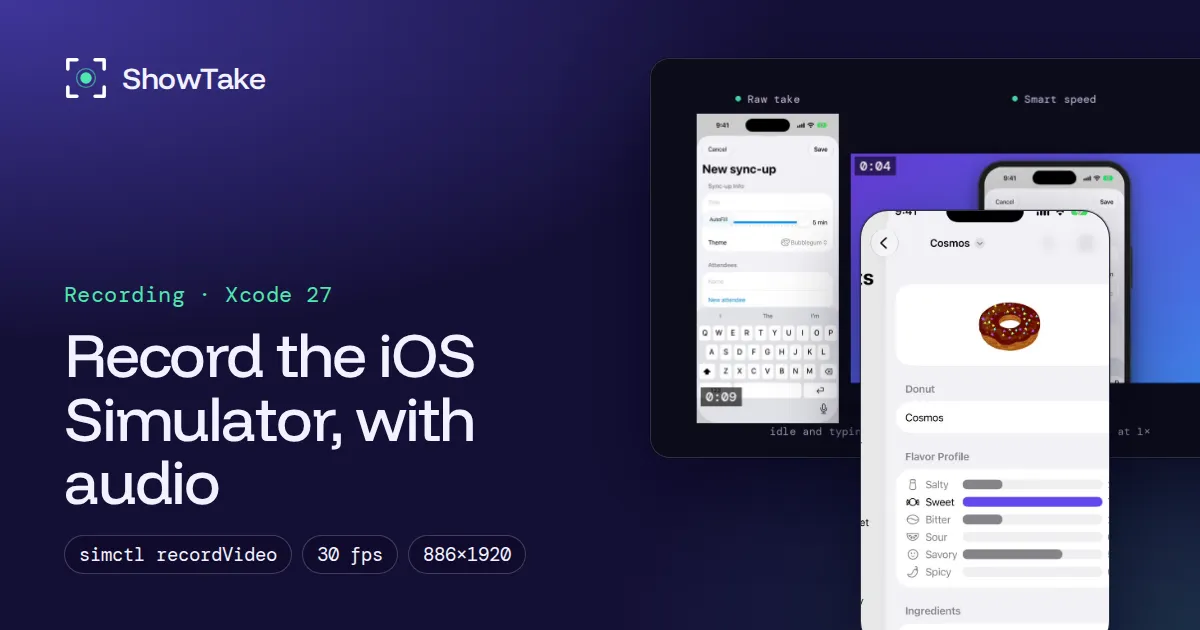
To record the iOS Simulator, run xcrun simctl io booted recordVideo demo.mov in Terminal and press Control-C to stop, or choose File > Record Screen in the Simulator app. Both give you a video of the device screen at its native resolution. Neither records audio or shows your taps, and the file is not ready for the App Store as it is. This guide covers the four ways to record, then fixes each of those gaps.
Everything below was tested on macOS 27.2 with Xcode 27.2 and an iPhone 17 Pro simulator on November 12, 2026.
iOS Simulator record video options at a glance
| Method | Audio | Shows taps | Output | Best for |
|---|---|---|---|---|
simctl io recordVideo | No | No | HEVC .mov by default (H.264 with a flag), device pixels | Scripts, CI, exact pixels |
| Simulator: File > Record Screen | No | No | .mov at device pixels | A quick clip while you test |
| Mac screen recording (Shift-Command-5) | Microphone; system audio on macOS 27 or later | Mouse clicks only | .mov of the window, with its frame | Clips with sound |
| An agent-driven take (ShowTake) | Music and captions added at export | Zoom and ripple on every tap | H.264 MP4 per destination, validated | Demos, App Previews, social posts |
1. Record with simctl (the most precise way)
simctl ships with Xcode. Its io recordVideo command writes the simulator's screen straight from the framebuffer, so you get the exact device pixels (1206×2622 on iPhone 17 Pro) with no window frame.
- Boot the simulator you want, from Xcode or with
xcrun simctl boot "iPhone 17 Pro".bootedin the commands below means "the one that is running". - Start recording. Wait for
Recording startedin the output before you touch the app; simctl prints it once the first frame is processed. - Use the app in the Simulator window.
- Stop with Control-C. simctl finishes the frames in flight and closes the file. Killing the process another way can leave a broken movie.
# HEVC by default; pass --codec=h264 for files you will edit or upload
xcrun simctl io booted recordVideo --codec=h264 --force ~/Desktop/demo.mov

# Devices with rounded corners: render the corner mask black instead of ignoring it
xcrun simctl io booted recordVideo --codec=h264 --mask=black ~/Desktop/demo.movThe options in Xcode 27.2 are --codec (h264 or hevc, default hevc), --display (which screen to record, for devices with more than one), --mask (ignored or black for the rounded corners; alpha is kept only for compatibility) and --force (overwrite an existing file). Run xcrun simctl io with no arguments to see the help for your Xcode.
2. Record from the Simulator menu
In the Simulator app choose File > Record Screen (Command-R) and choose it again to stop. You get the same kind of file as with simctl: the screen only, at device pixels, without audio. It is the fastest way to grab a clip while testing; use simctl when you want to choose the codec or start recording from a script.
3. Record the window with the Mac screen recorder (to get audio)
The Simulator plays the app's sound through your Mac's speakers, and neither simctl nor the Simulator menu puts it in the file. The Mac's own screen recorder can:
- Press Shift-Command-5 and choose Record Selected Window, then click the Simulator window.
- Open Options and choose Include System Audio (macOS 27 Golden Gate or later). On older macOS versions this option is missing; there you can only pick a microphone.
- Optionally choose Show Mouse Clicks so viewers see where you click.
- Click Record, use the app, then stop with the Stop button in the menu bar or Command-Control-Esc.
The catch: you record the Simulator window, so the video has the window's size and Retina scale instead of the device's pixels, and the device frame and title bar if they are visible. That is fine for a bug report or a tweet, but it is not an App Preview (Apple wants the screen only, at exact sizes). Apple documents the toolbar options in How to record the screen on your Mac.
Show taps in a Simulator recording
A screen recording shows what changed, not where you touched, so viewers lose track. Three options:
- The hidden Simulator setting. Many developers turn on Simulator's single-touch indicators with
defaults write com.apple.iphonesimulator ShowSingleTouches 1and restart the Simulator. It is not a documented option, so it may stop working in a future Xcode. - Add them when editing. Screen editors can draw clicks, but they only know where your Mac pointer was, not which element the app received.
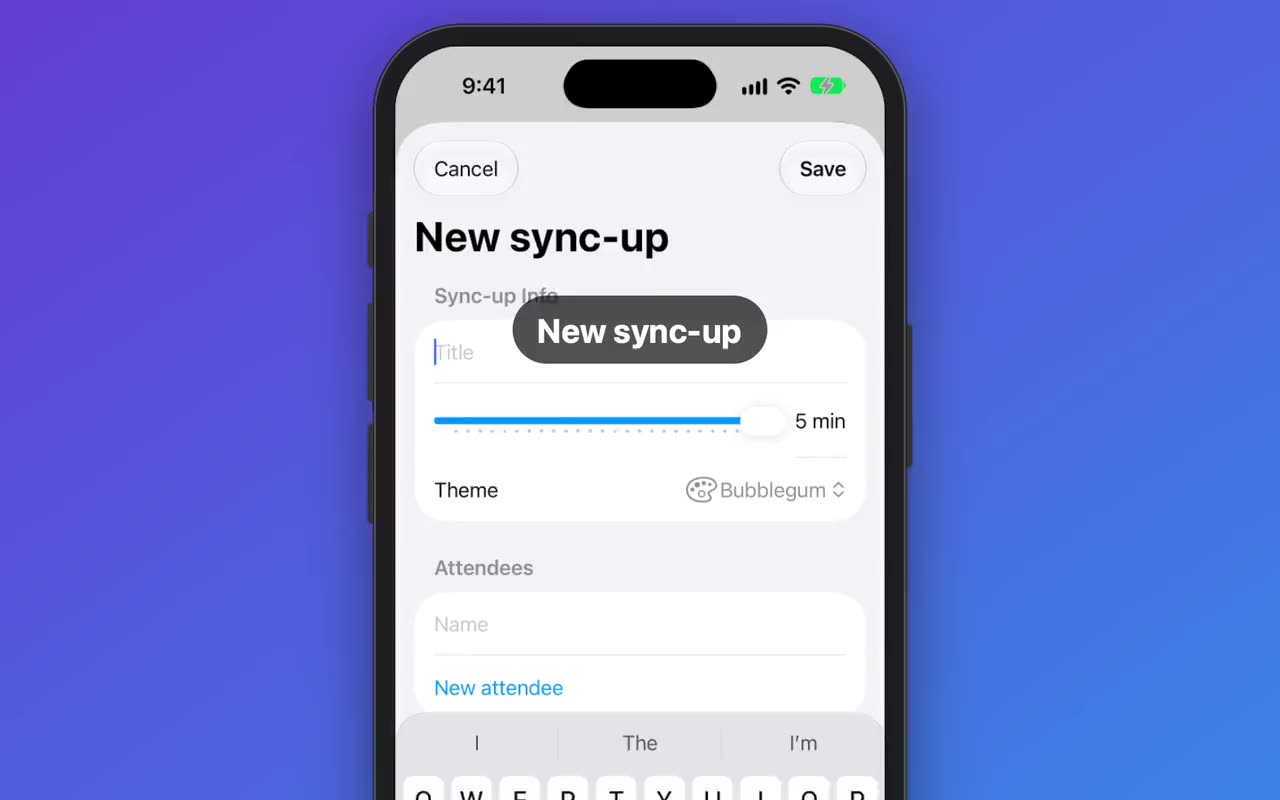
- Log the taps while filming. This is how ShowTake does it: the agent taps through the app with ShowTake's tools, every tap is logged with its time and the element's frame, and the render draws a ripple and zooms the camera onto that element.
Make a recording App Store ready
App Previews have strict specs: 886×1920 for current iPhones (portrait), 30 fps or lower, H.264 High Profile up to level 4.0 or ProRes 422 HQ, a stereo AAC audio track (silent is fine) and 15 to 30 seconds. A raw Simulator file breaks most of them. This ffmpeg command converts a 1206×2622 recording into a file that matches the iPhone App Preview size:
# Constant 30 fps, 886×1920, H.264 High 4.0, ~10 Mbps, plus a silent stereo AAC track; first 30 seconds
ffmpeg -i demo.mov -f lavfi -i anullsrc=r=44100:cl=stereo -t 30 \
  -vf "fps=30,scale=886:1920:flags=lanczos,setsar=1" \
  -c:v libx264 -profile:v high -level 4.0 -b:v 10M -maxrate 12M -bufsize 20M -pix_fmt yuv420p \
-c:a aac -b:a 256k -shortest -movflags +faststart preview.mp4Then drop the file into the free App Preview checker: it reads the size, frame rate, codec, length and audio in your browser and tells you what Apple will reject. The full rules, including the ones about device frames, are in how to make an App Store preview video. Making stills instead? Here are all App Store screenshot sizes. Need other shapes for X, TikTok or LinkedIn? See video sizes for app demos.
Prepare the Simulator before you record
Most re-takes come from the setup, not the recording (the full process, from shot list to export, is in how to make an app demo video). Before you press record:
4. Let your coding agent film the take
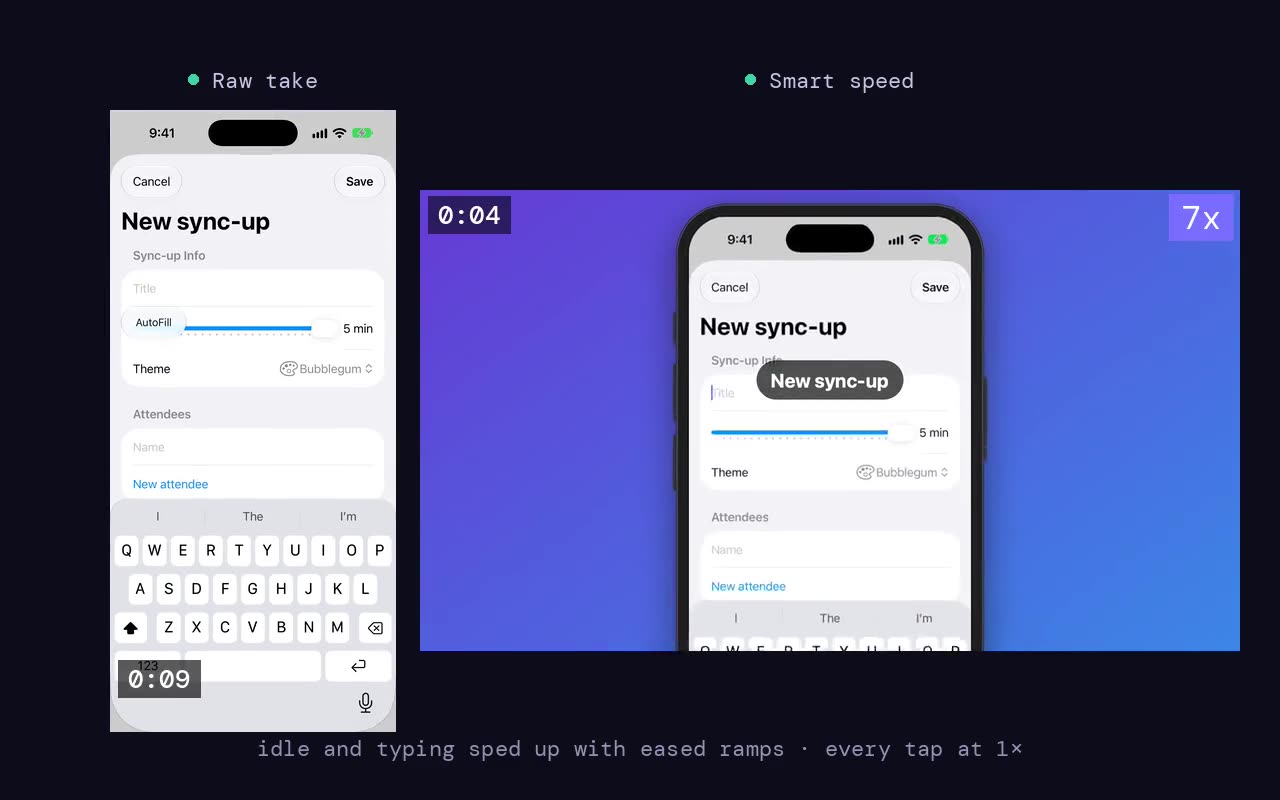
The methods above all assume you drive the app by hand and fix the result afterwards. If you build with Claude Code, Codex or Cursor, the agent can drive the Simulator instead. ShowTake is a Mac app with a built-in MCP server: the agent prepares the app (build, install, status bar, appearance), taps and types through the flow, and ShowTake records the screen and logs every action. The render cuts idle time, zooms on each tap and adds your step captions; the export writes App Preview, X, TikTok and YouTube files and checks each one.
You connect it once:
claude mcp add --scope user showtake -- "/Applications/ShowTake.app/Contents/MacOS/showtake-mcp"Then ask for the video in plain words:
Paste into your agent
Film a 25-second demo of the app in the iPhone 17 Pro simulator: open the
menu, pick a donut and change its glaze. Clean status bar, light mode.
Export an App Preview and a 9:16 cut for TikTok, and save the flow so we
can re-shoot it for the next build.Already recorded the Simulator by hand? ShowTake's import_video tool turns an existing .mov (from simctl, the Simulator menu or QuickTime) into a take: it finds where the action is, cuts idle time and plans zooms, then renders and exports like a filmed take.
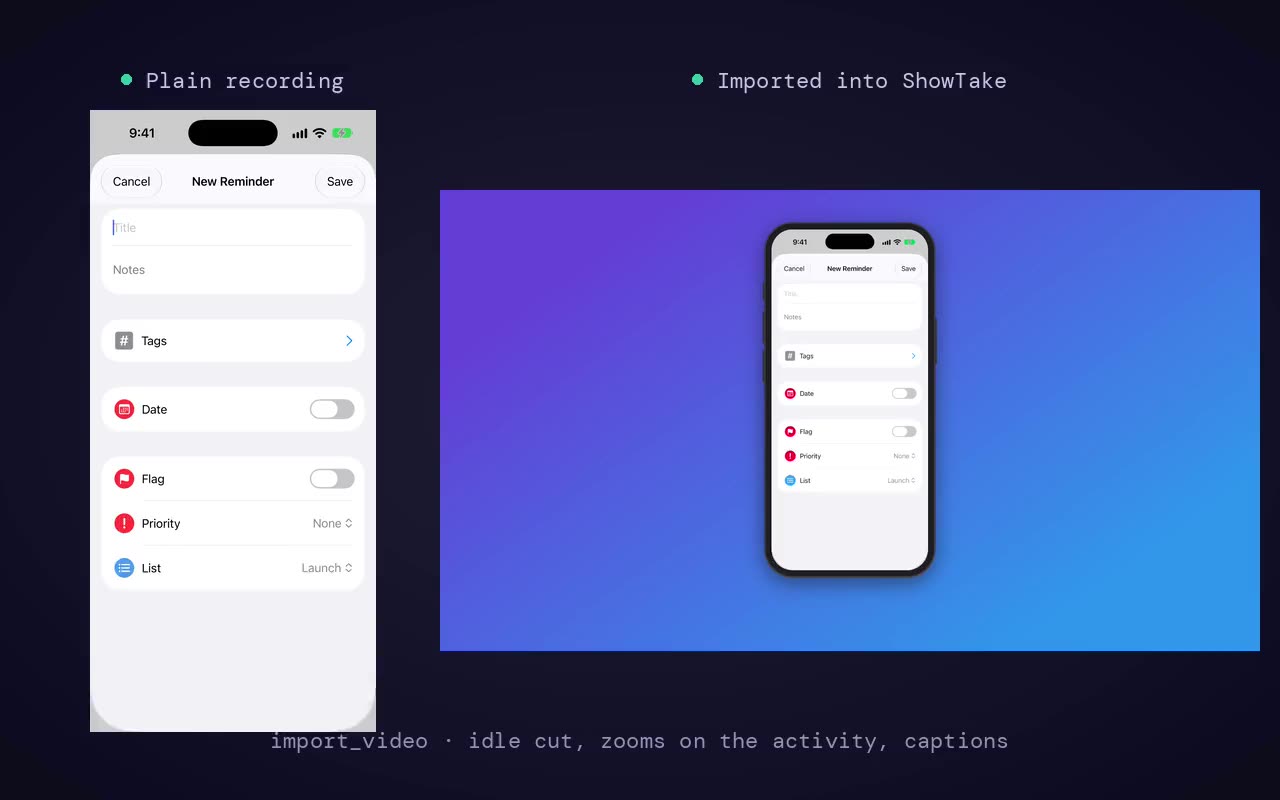
A clean take is saved as a flow, so the next build or another language is one replay, with no agent and no tokens. Setup for other agents is in connect your agent.
Film it with your agent
ShowTake is a Mac app with a built-in MCP server: your coding agent drives your app and ShowTake renders the zooms, captions and every export size. Free to try, with a watermark.
Common questions
How do I record the iOS Simulator with sound?
simctl and the Simulator's Record Screen menu never record audio. On macOS 27 Golden Gate or later, record the Simulator window with Shift-Command-5 and choose Include System Audio in Options. On older macOS versions, record the screen with simctl and add music or a voice-over afterwards.
Where does xcrun simctl recordVideo save the file?
At the path you pass as the last argument, for example ~/Desktop/demo.mov. Add --force to overwrite an existing file. The command keeps recording until you press Control-C.
Why does my Simulator recording look choppy or have the wrong frame rate?
simctl writes frames only when the screen changes, so the file has a variable frame rate. Convert it to a constant 30 fps with ffmpeg (-vf fps=30) before editing it or uploading it as an App Preview.
Can I use a Simulator recording as an App Store preview?
Yes. Apple asks for captures of the app itself, and a Simulator recording is exactly that. Scale it to an accepted size such as 886×1920, keep it at 30 fps or lower in H.264 with a stereo AAC track, and keep it between 15 and 30 seconds.
How do I show taps in an iOS Simulator recording?
The hidden setting defaults write com.apple.iphonesimulator ShowSingleTouches 1 draws touch indicators in many Xcode versions but is undocumented. A tool that logs each tap while filming, like ShowTake, can draw ripples and zoom on the exact element instead.
ShowTake for Mac
Let your coding agent film the demo
Your agent drives your iOS app in the Simulator or your Mac app; ShowTake records every tap and renders zooms, captions, App Store previews, screenshots and social cuts. Free to try, with a watermark.