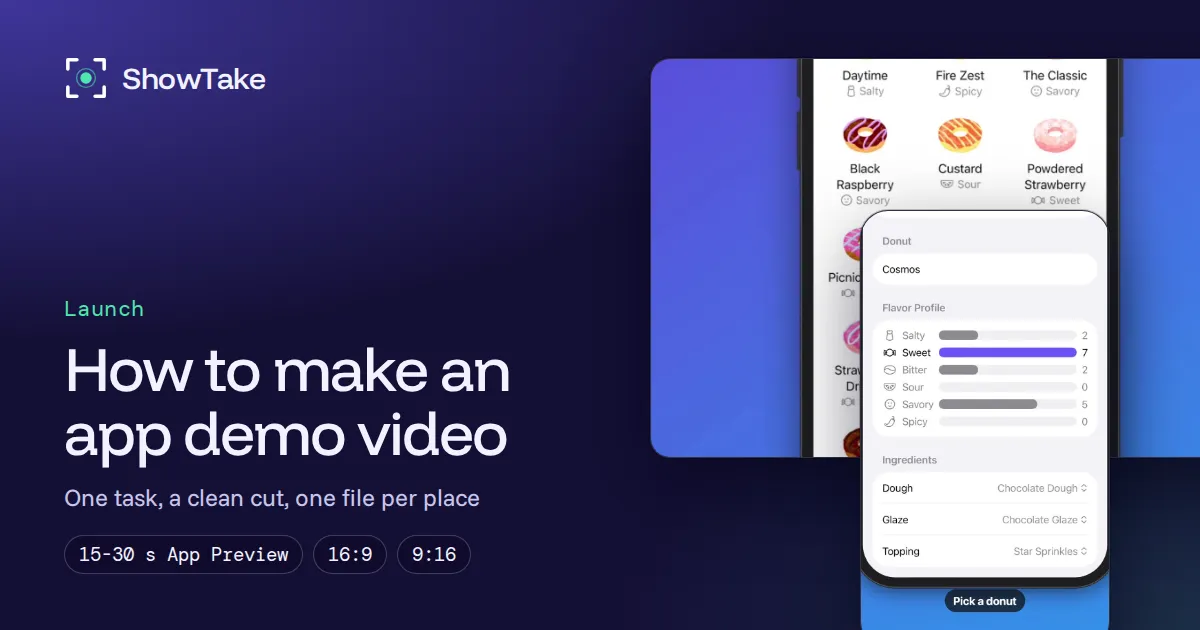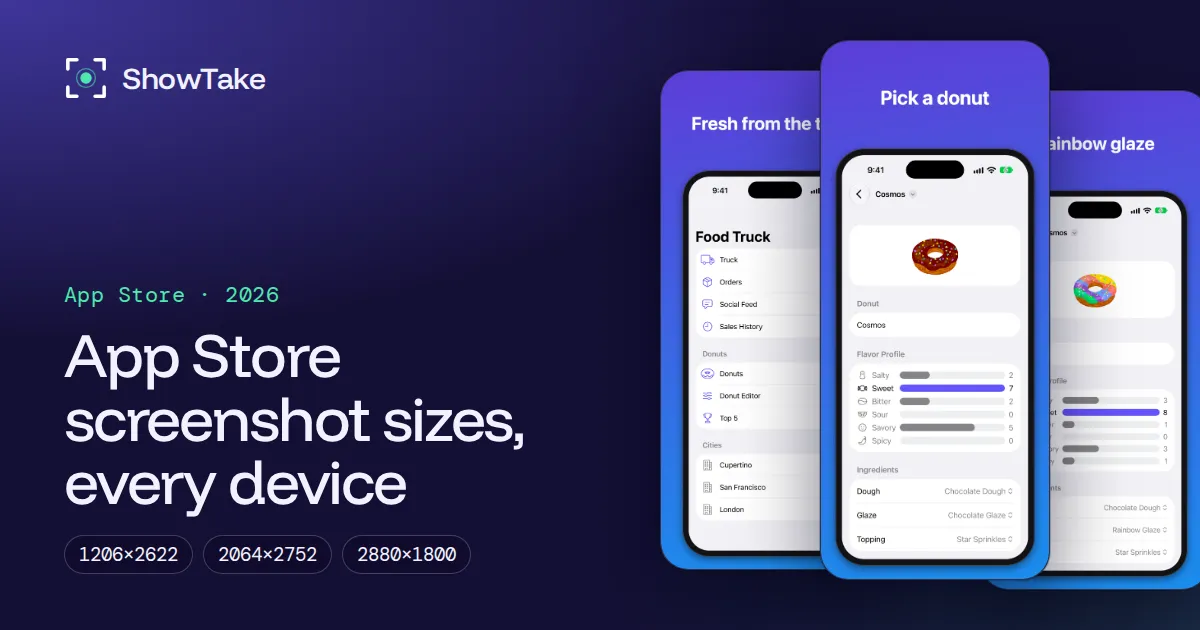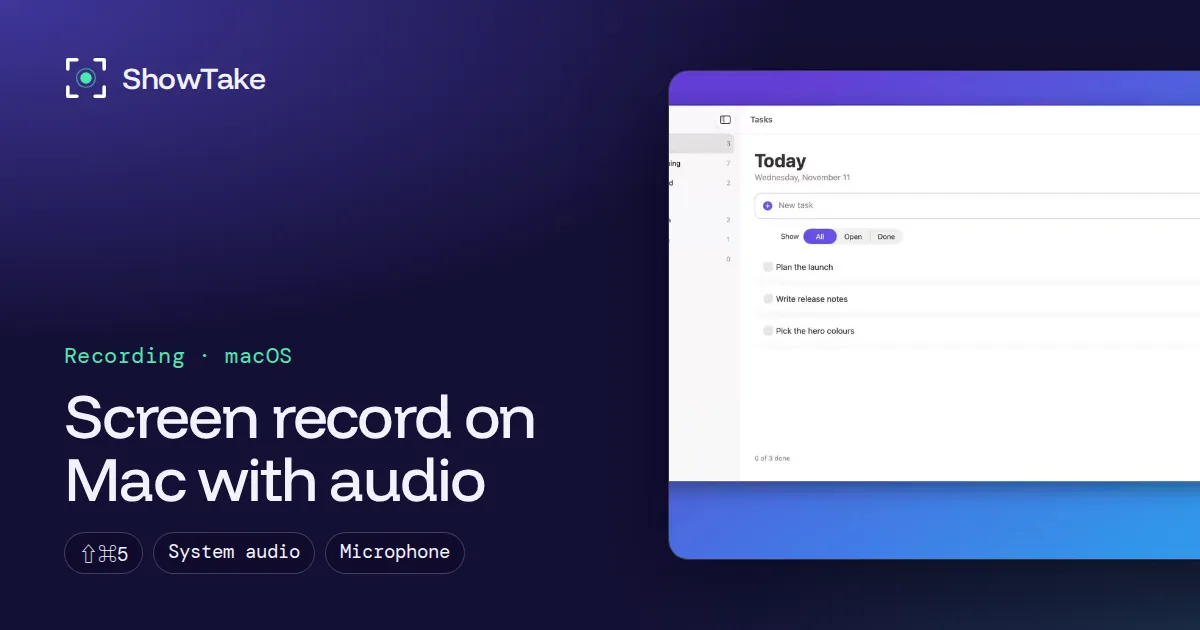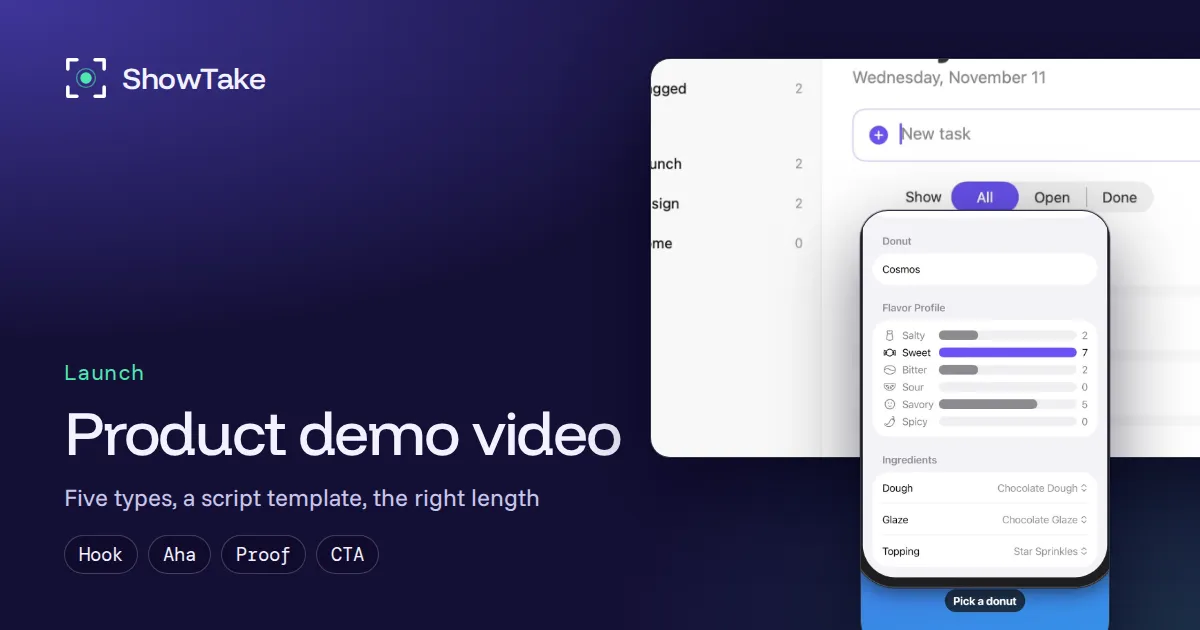
A product demo video is a short recording of your real product doing a job a buyer cares about, from the problem to the result, ending with one next step. Pick the type first (a 20-second feature clip and a 5-minute sales walkthrough are different videos), write a script of 4 to 6 beats, then record, cut and export one file per place it will play.
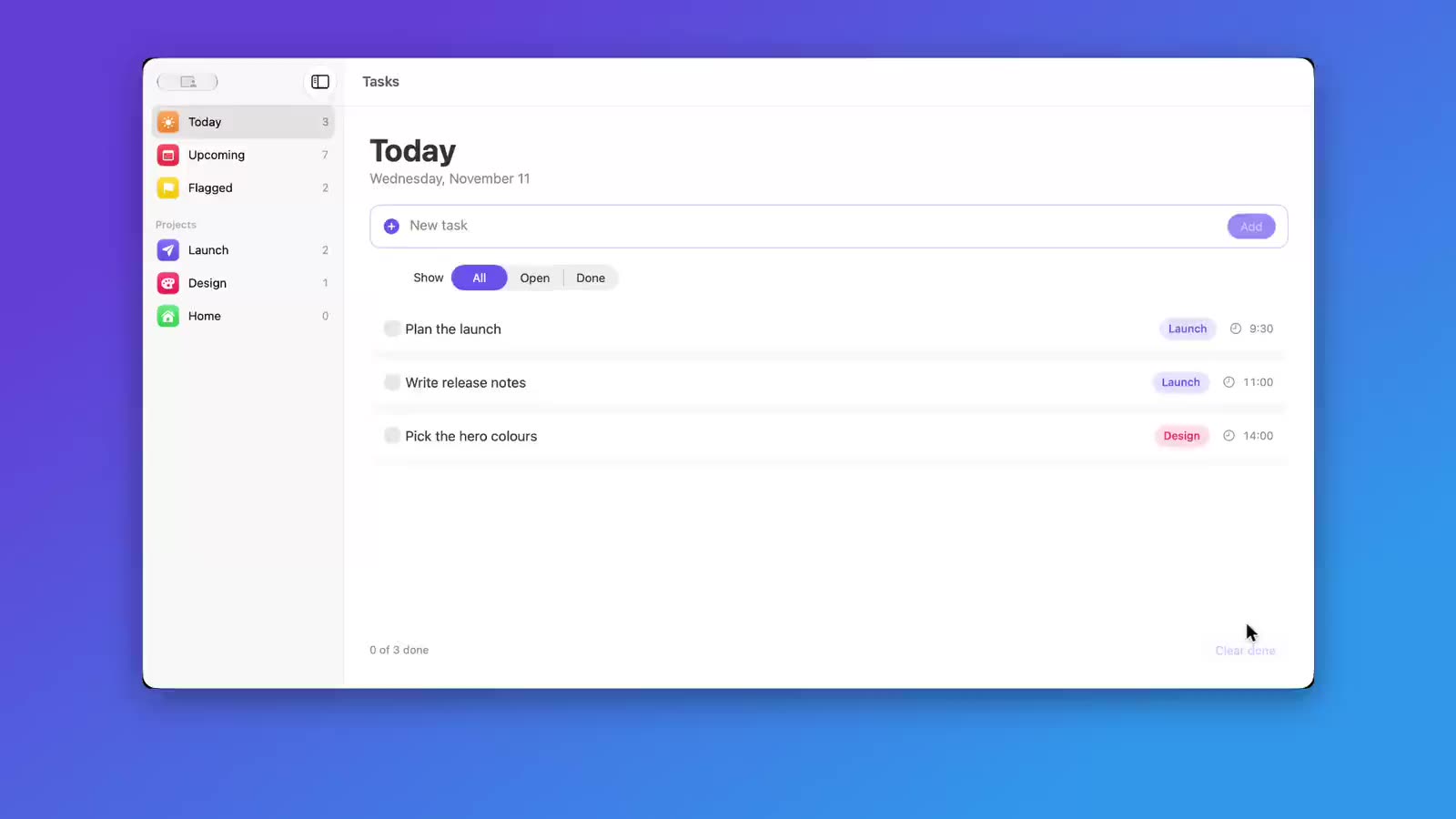
Most guides on this query are lists of web SaaS demos made by agencies. This one is for people who ship software themselves, especially iPhone and Mac apps: how to choose the format, a script template with timings, the length that fits each destination, and a checklist. The footage on this page is real: a Mac to-do app filmed and edited with ShowTake.
The five kinds of product demo video
"Product demo" covers five different jobs. Each one has its own viewer, length and call to action, so decide which one you are making before you write a word.
| Type | Viewer | Length | Where it plays | Ends with |
|---|---|---|---|---|
| Feature clip | Someone scrolling a feed | 15-45 s | X, LinkedIn, Threads, TikTok, changelog | Link to try it |
| Overview demo | A first-time visitor | 60-120 s | Website hero or product page, Product Hunt | Download or sign up |
| Walkthrough (how-to) | A new user | 2-5 min | Docs, onboarding email, YouTube | Do it yourself |
| Recorded sales demo | A buyer comparing tools | 5-15 min | Sales follow-up, pricing page | Book a call or buy |
| Interactive demo | A visitor who wants to click | Self-paced | Website, sales emails | Sign up |
The last row is not a video: interactive demo tools capture your web app's screens and let the viewer click through them in the browser. They work well for web SaaS. For a native iPhone or Mac app there is no browser page to capture, so a recorded video is the format that fits.
If you make only one, make the feature clip. It is the shortest to produce, it works in every feed, and three of them cut together become your overview demo.
A product demo script template
Every good demo, from a 20-second clip to a 10-minute walkthrough, follows the same five parts. Only the number of beats in the middle changes.
| Part | What it does | Feature clip (20 s) | Overview (90 s) |
|---|---|---|---|
| Hook | Names the outcome or the pain, in the first frame | 0-3 s | 0-8 s |
| Setup | Shows where the viewer starts: the empty list, the messy file | 3-5 s | 8-20 s |
| Aha | The one moment the product does the job | 5-15 s | 20-60 s, 2 to 3 tasks |
| Proof | The result on screen: the finished list, the exported file | 15-18 s | 60-80 s |
| Call to action | One next step, written on screen | 18-20 s | 80-90 s |
Write the script as a list of beats, one line of on-screen caption each. Fill in this template before you open any recording tool:
Product:      <name>, <one-line promise>
Viewer:       <who watches, where, sound on or off>
Type/length:  <feature clip | overview | walkthrough>, <seconds>
One outcome:  <what the viewer should believe after watching>

Beat 1 (hook):    screen <...>   caption "<outcome in 2-4 words>"
Beat 2 (setup):   screen <...>   caption "<...>"
Beat 3 (aha):     action <tap / click / type> caption "<what changed>"
Beat 4 (aha):     action <...>   caption "<...>"
Beat 5 (proof):   screen <result> caption "<...>"
Beat 6 (CTA): end frame caption "<one next step>"The demo at the top of this page used this script: "Add a task", "Add another", "Check it off", "Finish another", "Show open tasks", "Clear finished tasks". Six beats of about three seconds each, captions that say what changed rather than which button was pressed.
How long should a product demo video be?
As short as the job allows. The viewer of a feed clip has not decided to care yet; the viewer of a sales demo has. These are the lengths we aim for:
| Destination | Length | Note |
|---|---|---|
| App Store App Preview | 15-30 s | Apple's limits, checked November 13, 2026 |
| X, LinkedIn, Threads post | 15-45 s | One task, captions on |
| TikTok, Reels, Shorts | 15-30 s | Vertical 9:16 |
| Website hero | 10-30 s, looping | Plays muted beside the headline |
| Product page or Product Hunt | 60-120 s | 2 to 3 tasks, one after the other |
| Walkthrough or sales demo | 2-15 min | Chapters, one per task |
Apple's App preview specifications set 15 seconds minimum and 30 seconds maximum, up to 500 MB, at most 30 fps, H.264 or ProRes 422 HQ, and up to three previews per device size and language. If a demo runs long, cut a beat instead of speeding everything up: fast footage of five tasks is harder to follow than normal-speed footage of three.
How to make a product demo video
The script decides the shoot. With beats on paper, making the video is a short list:
- Choose the type and length from the tables above, and the one outcome the viewer should take away.
- Write the script with the template: 4 to 6 beats, one caption each.
- Prepare the product: realistic demo data, a clean status bar or desktop, one window size, alerts answered.
- Record the app: the iOS Simulator or the Mac app window, with a couple of calm seconds before the first action and after the last.
- Edit: cut the waiting, keep each action and its result at normal speed, zoom on what was tapped or clicked.
- Add captions and music, one caption per beat, music low.
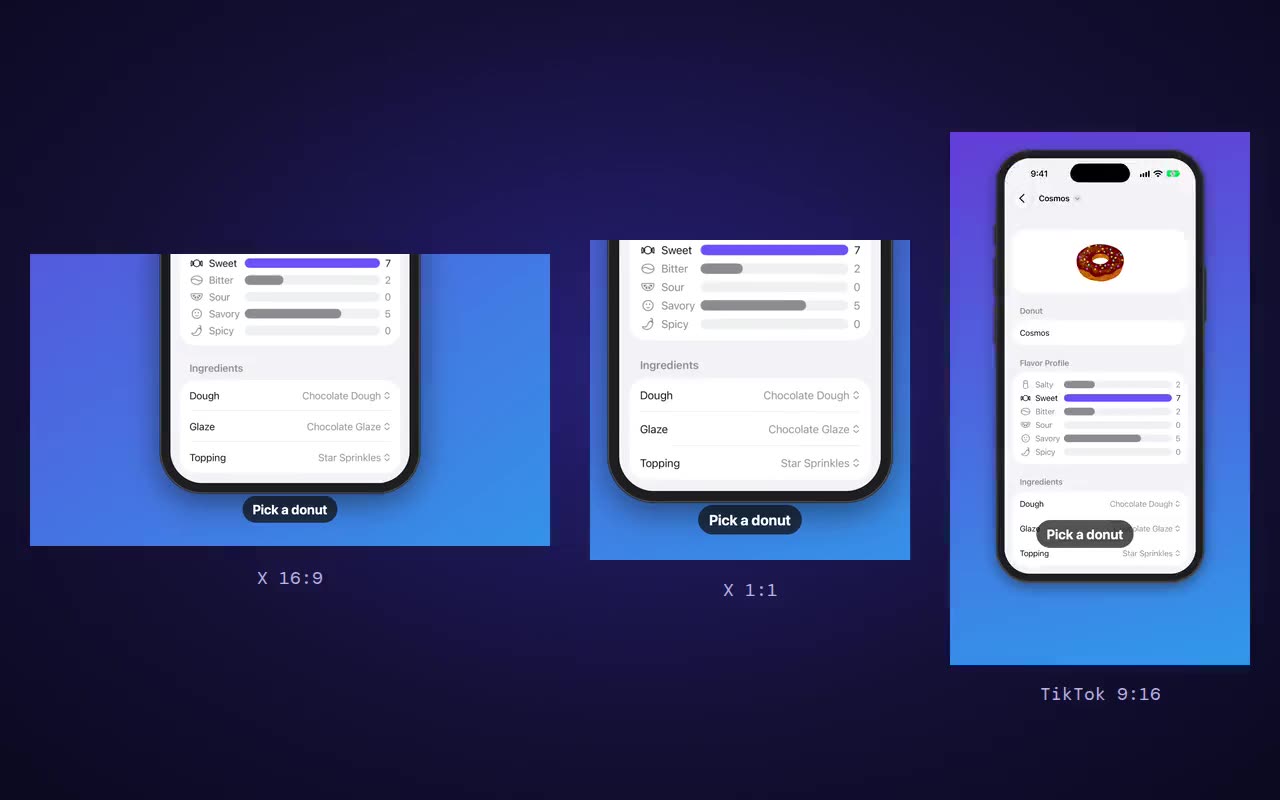
- Export one file per destination: 16:9 for X and YouTube, 9:16 for vertical feeds, the exact App Preview size for the App Store.
Every step for an iPhone or Mac app, with commands and real before/after clips, is in how to make an app demo video. Recording methods and their flags are in how to record the iOS Simulator and how to screen record on Mac with audio.
Product demo video checklist
Run through this before you publish. Each item is a mistake we see in demos that otherwise look fine.
Keep the demo current
The last checklist item is the one that slips. A product demo shot for version 1.0 shows the old UI by version 1.3, and re-recording by hand means repeating every step above. Two habits help:
- Keep the script in your repo, next to the code, so the next take uses the same beats.
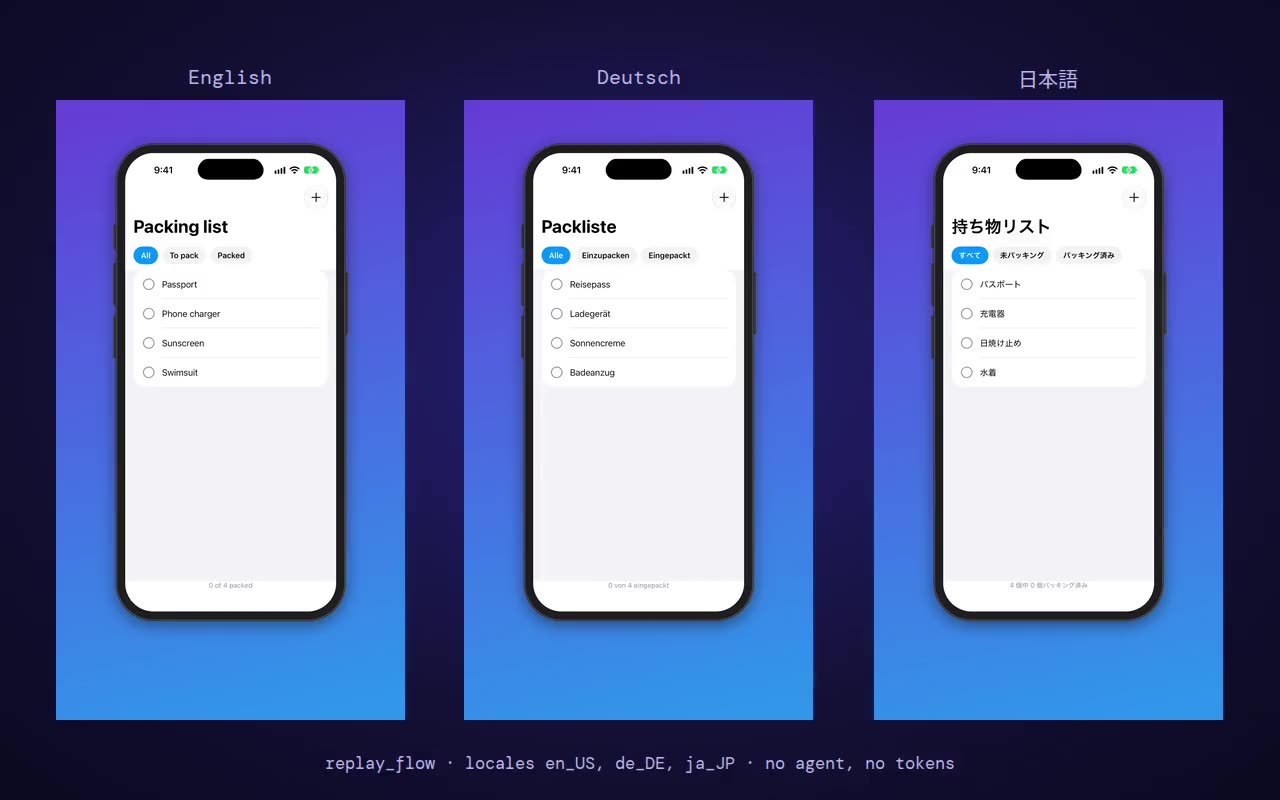
- Make the shoot repeatable. If the steps of a clean take are saved, the next version, another language or another device is a re-run, not a new production.
Making product demo videos of your app with ShowTake
ShowTake is a Mac app with a built-in MCP server. Your coding agent (Claude Code, Codex, Cursor and other MCP clients) uses it to film your iOS Simulator or Mac app and edit the take into a finished demo. It covers steps 3 to 7 above and the "keep it current" part:
- Film: the agent prepares a clean simulator or sizes your Mac window, then taps, clicks and types through your beats while ShowTake records the screen and logs every action.
- Edit: the render cuts idle time, keeps actions at 1×, zooms on each element that was tapped or clicked, turns the agent's step captions into on-screen captions and adds a track from the built-in music library.
- Export: one file per preset (App Preview sizes, X, vertical cuts, YouTube, LinkedIn), each checked against its rules.
- Re-shoot: a clean take is saved as a flow and replayed for the next build with no agent.
Paste into your agent
Film a 20-second product demo of my Mac app, script below.
One caption per beat, zoom on every click, calm music.
Beats: add a task / add another / check it off / finish another /
show open tasks / clear finished tasks.
Export 16:9 for X, then save the flow so we can re-shoot it next release.What it does not do: it does not film web apps in a browser, real iPhones, Android apps or a webcam, and it does not make animated explainers or interactive click-through demos. For a web SaaS, an interactive demo tool or a general screen recorder is the better fit.
Free vs Pro. The free plan films, renders with music and captions, and exports the X 16:9 preset with a small watermark. Pro adds every other preset (App Previews, vertical, square, YouTube, LinkedIn), screenshots and the launch kit, 4K, batch replays and your own audio files. Setup is one paste into your agent: see connect your agent or download ShowTake.
Film it with your agent
ShowTake is a Mac app with a built-in MCP server: your coding agent drives your app and ShowTake renders the zooms, captions and every export size. Free to try, with a watermark.
Common questions
What is a product demo video?
A recording of the real product doing a job the viewer cares about, from the starting problem to the visible result, ending with one call to action. Unlike an explainer video, it shows the actual interface instead of animation or mockups.
What should a product demo script include?
Five parts: a hook that names the outcome, the setup the viewer starts from, the moment the product does the job, the result on screen, and one next step. Write it as 4 to 6 beats with one short on-screen caption each.
How long should a product demo video be?
15 to 45 seconds for social feeds and website heroes, 15 to 30 seconds for an App Store App Preview (Apple's limits), 60 to 120 seconds for an overview on a product page, and several minutes only for walkthroughs and sales demos where the viewer already wants the detail.
Is a SaaS demo video different from an app demo video?
The script and length rules are the same. The recording differs: a web SaaS is captured in a browser and can also become an interactive demo, while an iPhone or Mac app is recorded from the iOS Simulator or the app window. The app demo video guide covers the native side step by step.
Can I make a product demo video for free?
Yes. Record the iOS Simulator with xcrun simctl io booted recordVideo demo.mov or a Mac window with Shift-Command-5, trim it in a free editor and add captions by hand. ShowTake's free plan films, edits with zooms, captions and music, and exports a 16:9 video with a small watermark.
ShowTake for Mac
Let your coding agent film the demo
Your agent drives your iOS app in the Simulator or your Mac app; ShowTake records every tap and renders zooms, captions, App Store previews, screenshots and social cuts. Free to try, with a watermark.