TestFlight feedback is what beta testers send you from the TestFlight app: a screenshot with up to 4,000 characters of comments, or crash details with an optional note after the beta app crashes. Testers send it with Send Beta Feedback in TestFlight (or Share Beta Feedback after taking a screenshot in your app), and you read it in App Store Connect under TestFlight > Feedback, in Xcode's Feedback organizer, or through the App Store Connect API.
The top results for "testflight feedback" today are Apple Developer Forums threads, a Stack Overflow question from the iOS 13 days and a few review sites. None puts the tester steps, the developer views, the API and webhooks on one page. This guide does. Every step below comes from Apple's own pages (App Store Connect Help, the TestFlight tester page, Xcode documentation and the App Store Connect API reference), read on November 18, 2026, and every command was run the same day.
How testers send TestFlight feedback
There are two ways on iPhone and iPad, and both end in the same form:
- From your app: take a screenshot while the beta app is open (side button + volume up), tap the thumbnail, then tap Share Beta Feedback.
- From TestFlight: open the TestFlight app, tap your app in the Apps list, then tap Send Beta Feedback. Choose a screenshot or skip it.
- Type comments (up to 4,000 characters). Say what you did, what you expected and what happened.
- Tap Submit. The developer sees it in App Store Connect and in Xcode.
When a beta app crashes, the next launch can show an alert asking whether to send the crash details to the developer through TestFlight, with room for a comment. That only happens if the developer left feedback turned on for the tester's group (more on that below).
Other platforms differ, and two of them have no in-app form at all:
| Device | Minimum OS | How to send feedback |
|---|---|---|
| iPhone, iPad | iOS / iPadOS 13 | Send Beta Feedback in TestFlight, or Share Beta Feedback from a screenshot |
| Mac | macOS 13 | TestFlight > select the app > Send Beta Feedback, optional Attach Screenshot |
| Apple Vision Pro | visionOS 1 | TestFlight > the app > Send Feedback, optional Attach Screenshot |
| Apple TV | tvOS 18 | No in-app form: email the address in the app's Information section in TestFlight |
| Apple Watch | watchOS 9 | No feedback form described by Apple; feedback goes by email |
| Older iPhone, iPad | iOS 12 and earlier | Send Beta Feedback opens an email to the developer |
Email feedback lands in the Feedback Email address the developer set on the app's Test Information page in App Store Connect. It never appears in App Store Connect or Xcode, so check that inbox too if you test on Apple TV.
Where developers read TestFlight feedback
Feedback from testers on TestFlight 2.3 or later shows up in four places. Pick by how you work:
| Where | What you get | Best for |
|---|---|---|
| App Store Connect > TestFlight > Feedback | Screenshots and Crashes lists, filters, delete, .zip download | Quick triage in the browser |
| Xcode > Window > Organizer > Feedback | Grid of reports, notes, rename, Mark as Resolved, email the tester | Working through reports while you fix them |
| App Store Connect API | JSON with the comment, device, OS, battery, disk, locale and screenshot URLs | Piping feedback into your issue tracker |
| Webhooks | A POST to your server when a new report arrives | Real-time alerts in chat or CI |
In App Store Connect
- In Apps, select the app and click the TestFlight tab.
- In the sidebar, below Feedback, click Screenshots or Crashes.
- Click Add Filter to narrow by platform, app version, build group, build, OS version or device.
- Click a report for the full screenshot, comments and tester, app and device details. Open in Xcode jumps to the same report in Xcode.
- The download icon at the top right saves a .zip with the screenshot (or crash report) and comments.
You need the Account Holder, Admin, App Manager, Developer or Marketing role. Two limits worth knowing: crash reports can be downloaded for 120 days, and when the app was terminated for being unresponsive (a hang rather than a crash), the crash report is not in the .zip.
In Xcode's Feedback organizer
Choose Window > Organizer, select Feedback in the Reports section of the sidebar, and pick your app from the pop-up at the top. Reports appear as a grid with screenshot previews; the filter bar narrows by kind, version and build, type and run destination. The inspector on the right has an email button to reply to the tester, a Share button that sends a teammate a link to the report, fields to rename it and add notes, and Mark as Resolved. Crash feedback also appears in the Crashes organizer next to the symbolicated crash, which Apple added in Xcode 13 (WWDC21 session "Triage TestFlight crashes in Xcode Organizer").
Feedback from iOS 12 and earlier, tvOS and watchOS does not appear in the organizer: it goes to the Feedback Email address.
Read TestFlight feedback from the API
App Store Connect exposes both kinds of feedback through its REST API:
GET https://api.appstoreconnect.apple.com/v1/apps/{id}/betaFeedbackScreenshotSubmissions
GET https://api.appstoreconnect.apple.com/v1/apps/{id}/betaFeedbackCrashSubmissions
GET https://api.appstoreconnect.apple.com/v1/betaFeedbackCrashSubmissions/{id}/crashLogA screenshot submission carries more than the comment. Its attributes are comment, email, createdDate, screenshots, appPlatform, buildBundleId, deviceModel, deviceFamily, devicePlatform, osVersion, locale, timeZone, connectionType, batteryPercentage, diskBytesAvailable, diskBytesTotal, appUptimeInMilliseconds, architecture, pairedAppleWatch, screenWidthInPoints and screenHeightInPoints. That is usually enough to reproduce a layout bug on the same simulator without asking the tester a single question.
The quickest way to call it is the open-source asc CLI, which signs the API requests with your App Store Connect API key. We ran these with asc 5.17.1 on November 18, 2026:
# newest screenshot feedback first, as a table
asc testflight feedback list --app 6833024884 --sort -createdDate --limit 5 --output table

# include screenshot URLs, filtered by device model and OS version
asc testflight feedback list --app "$APP_ID" --include-screenshots \
  --device-model "$MODEL" --os-version "27.0"

# crash submissions and the crash log of one of them
asc testflight crashes list --app "$APP_ID"
asc testflight crashes log --submission-id "$SUBMISSION_ID"On our test app, which has no testers yet, the first command returns an empty table and the JSON form shows exactly which endpoint it called:
{"data":[],"links":{"self":"https://api.appstoreconnect.apple.com/v1/apps/6833024884/betaFeedbackScreenshotSubmissions"},"meta":{"paging":{"total":0,"limit":50}}}--paginate fetches every page, and asc testflight feedback delete --submission-id … --confirm removes a report once it is in your tracker. The device model filter takes the same model identifier strings the deviceModel attribute returns (asc's own help uses iPhone15,3), not marketing names.
Get notified with webhooks
Polling works, but App Store Connect can also POST to your server the moment a tester submits feedback. Set it up in Users and Access > Integrations > Webhooks: click +, enter a name, the payload URL and a secret, select the app and at least one event, then Add. The Test button sends a ping you can see under Recent Deliveries (the last 20 deliveries from the past week). You need the Account Holder, Admin or App Manager role, and each app can have up to 10 webhooks.
The two feedback events are BETA_FEEDBACK_SCREENSHOT_SUBMISSION_CREATED and BETA_FEEDBACK_CRASH_SUBMISSION_CREATED. The payload is small: an event type, a timestamp and a link to the new submission, which you then fetch with the API.
{
  "data": {
    "type": "betaFeedbackScreenshotSubmissionCreated",
    "attributes": { "timestamp": "2025-05-08T01:29:36.16Z" },
    "relationships": {
      "instance": {
        "data": { "type": "betaFeedbackScreenshotSubmissions", "id": "AD8JvKbr0BK0Cj9OnM6WO6I" },
        "links": { "self": "https://api.appstoreconnect.apple.com/v1/betaFeedbackScreenshotSubmissions/AD8JvKbr0BK0Cj9OnM6WO6I" }
      }
    }
  }
}Every delivery carries an x-apple-signature header of the form hmacsha256=<hex>: an HMAC-SHA256 of the raw request body with your secret. Verify it before you trust the request. This TypeScript function passes Apple's own test vector (secret "This is my secret", body "Hello, World!"):
import { createHmac, timingSafeEqual } from "node:crypto";

export function isFromAppStoreConnect(rawBody: string, header: string | null, secret: string): boolean {
  const expected = `hmacsha256=${createHmac("sha256", secret).update(rawBody).digest("hex")}`;
  if (!header || header.length !== expected.length) return false;
  return timingSafeEqual(Buffer.from(header), Buffer.from(expected));
}Hash the body exactly as received, before any JSON parsing; re-serialized JSON will not match.
Delete, disable and manage feedback
- Delete one report: open it in App Store Connect and click Delete, then Delete Feedback. Delete Tester & Feedback also removes that tester from TestFlight (you can invite them again later).
- Turn feedback off for a group: TestFlight tab > a group under Testers & Groups > the group's settings tab > Tester Feedback > Disable. Testers in that group can no longer take screenshots or send crash details from the app; they can still send email feedback from TestFlight. A tester in several groups loses in-app feedback if any of their groups has it disabled.
- Mind the clock: each build can be tested for up to 90 days from upload, and a tester can install it on up to 30 devices. Crash reports stay downloadable for 120 days, so export what you need.
Getting feedback you can act on
Most TestFlight feedback is one screenshot and a sentence. You get better reports when you tell testers what you want before they start. Put this in the What to Test notes of each build:
The last item is the one teams skip. A tester who reported a bug is the best person to confirm the fix, and a short clip of the fixed flow does that faster than release notes.
Reproduce and film the fix with ShowTake
A report like "the order sheet jumps when I rotate on my 17 Pro" plus the API's deviceModel, osVersion and locale is enough to reproduce it in the iOS Simulator. ShowTake turns that repro into a video your coding agent films for you. Ask Claude Code, Codex or Cursor to reproduce the report: it calls prepare_ios, which builds the app in Release and launches it on a clean simulator, then taps through the steps while ShowTake records, zooms on each tap and turns the agent's notes into captions. Save the take as a flow, fix the bug, and replay_flow films the same steps again on the new build with no agent in the loop. The before and after clips go into the issue and the reply to your tester.
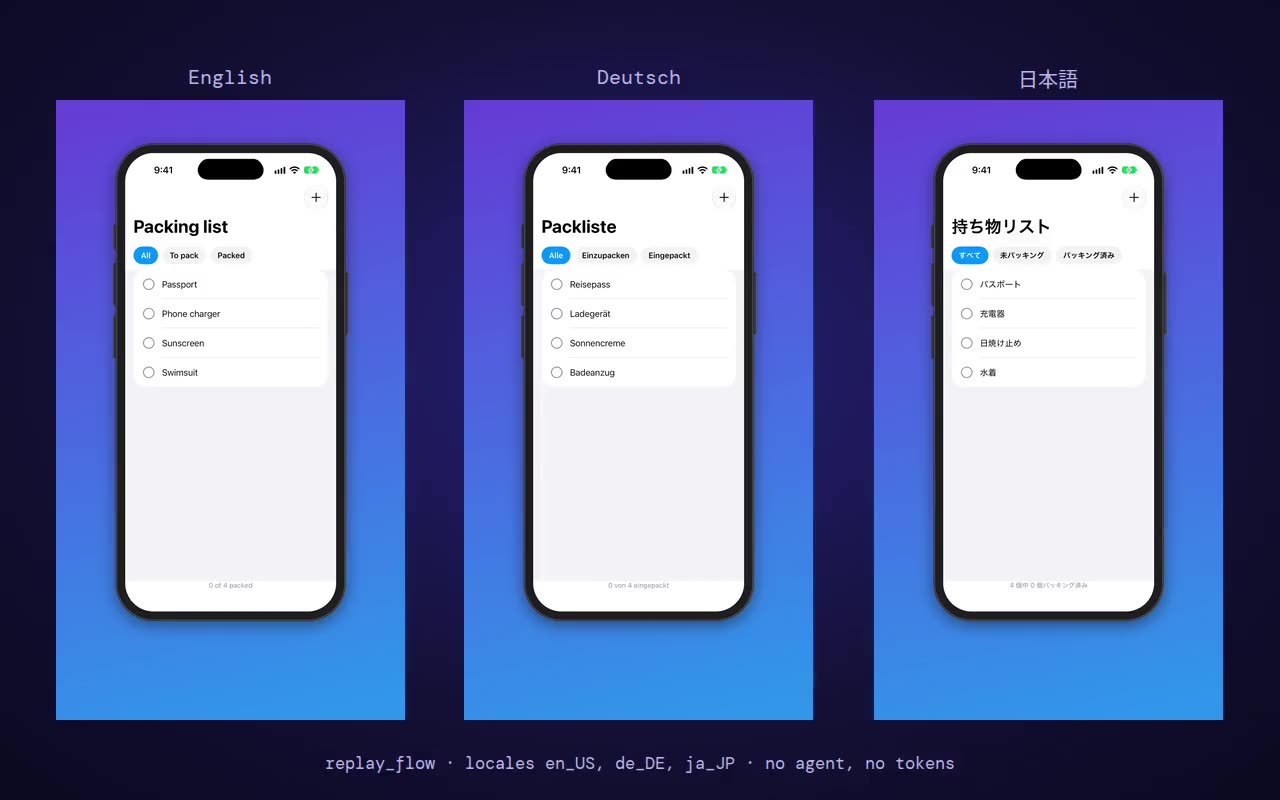
What ShowTake does not do: it does not collect or read TestFlight feedback (use App Store Connect, Xcode or the API above), it does not record real devices, Apple TV, Apple Watch or Android, and it is not a crash reporter. It films iOS Simulator and Mac app windows.
Free vs Pro. The free plan films takes, adds library music and captions, and exports the X 16:9 preset with a small watermark. Pro adds every other preset, App Previews and App Store screenshots, 4K, batch replays across languages and devices, and your own audio files. Saved flows and replays are documented in flows and replays; to start, download ShowTake or paste showtake.app into your agent. When your beta is ready to ship, the App Store screenshot sizes guide and the simctl cheat sheet cover the next steps.
Film it with your agent
ShowTake is a Mac app with a built-in MCP server: your coding agent drives your app and ShowTake renders the zooms, captions and every export size. Free to try, with a watermark.
Common questions
How do I send feedback on TestFlight?
On iPhone or iPad, open TestFlight, tap the app and tap Send Beta Feedback, or take a screenshot inside the beta app and tap Share Beta Feedback. Add a screenshot if you like, write up to 4,000 characters and tap Submit. On a Mac the button is in the same place; on Apple Vision Pro it is Send Feedback.
Where do I see TestFlight feedback as a developer?
In App Store Connect, open the app, click the TestFlight tab and choose Screenshots or Crashes below Feedback in the sidebar. The same reports are in Xcode under Window > Organizer > Feedback, and in the App Store Connect API (betaFeedbackScreenshotSubmissions and betaFeedbackCrashSubmissions).
Can testers attach a video to TestFlight feedback?
No. The feedback form takes one screenshot and text, and the API's feedback attributes have screenshots but no video. Ask testers to send screen recordings another way, such as email or your support form, and say so in the What to Test notes.
Why is my TestFlight feedback not showing up?
Check four things: the tester's group has Tester Feedback enabled; the tester uses TestFlight 2.3 or later on iOS 13, macOS 13 or visionOS 1 or newer; feedback from Apple TV, Apple Watch and iOS 12 goes to the Feedback Email address instead; and your role in App Store Connect is one that can view feedback (Account Holder, Admin, App Manager, Developer or Marketing).
How long does TestFlight keep crash reports?
Crash reports from tester feedback can be downloaded for 120 days in App Store Connect. Apple does not state a period for screenshot feedback, so export anything you want to keep, for example with the API.
ShowTake for Mac
Let your coding agent film the demo
Your agent drives your iOS app in the Simulator or your Mac app; ShowTake records every tap and renders zooms, captions, App Store previews, screenshots and social cuts. Free to try, with a watermark.