The best screen recorder for Mac is the one built into macOS for most people: press Shift-Command-5, and on macOS 27 it records the screen, a window, your microphone and the Mac's own sound for free. Pay for a recorder only when you need something it lacks: CleanShot X for everyday capture with a light editor, Screen Studio for polished tutorials with automatic zooms, Loom or Cap for share links with your webcam, and OBS Studio for free multi-source recording and streaming.
Most "best of" lists rank tools on one scale. That does not work, because a recorder that is perfect for a five-minute bug report is the wrong tool for a course or an App Store preview. Below, each tool gets the job it does best, its price from its own pricing page (all checked on November 19, 2026, in US dollars where the page shows them), and the catch.
The 9 screen recorders at a glance
| Tool | Best for | Price (checked Nov 19, 2026) | Free option |
|---|---|---|---|
| Screenshot toolbar + QuickTime | Quick recordings with no install | Free, built into macOS | Yes, all of it |
| OBS Studio 33 | Multi-source recording and streaming | Free, open source | Yes, all of it |
| CleanShot X | Everyday capture with a light editor | $35 once (Basic) or $10/user/month billed yearly (Pro) | No |
| Screen Studio | Polished tutorials with automatic zooms | $29/month, or $9/month billed yearly | No |
| Cap | Open-source share links and local recording | Free for personal use; $29/year or $58 once (Desktop); Pro $12/user/month | Yes, personal use |
| Loom | Quick async videos with your webcam | Free (25 videos, 5 min, 720p); Business $18/user/month | Yes, limited |
| Camtasia | Long courses with a full timeline editor | Yearly subscription, four plans | Not on the store page |
| ScreenFlow | A one-time-purchase recorder and editor | $199 once | Free trial |
| ShowTake | Demos of your own iPhone or Mac app, filmed by your coding agent | Free with watermark; Pro $9/month, $49/year or $129 once | Yes, with watermark |
Prices change often and some vendors show regional prices, so treat the table as a dated snapshot and confirm on the vendor's page before you buy.
1. Screenshot toolbar and QuickTime (free, built in)
Every Mac already has a good recorder. Press Shift-Command-5 and the Screenshot toolbar offers Record Entire Screen, Record Selected Window (macOS Tahoe 26 or later) and Record Selected Portion. Under Options you pick a microphone, Include System Audio (macOS 27 Golden Gate or later), Show Mouse Clicks, a timer and where to save. On macOS Tahoe 26 or later, supported Macs also offer SDR (H.264) or HDR (HEVC) capture. QuickTime Player's File > New Screen Recording opens the same toolbar on recent macOS, then lets you trim the result. Source: Apple's How to record the screen on your Mac, read today.
The same recorder runs from Terminal. On our build Mac (macOS 27.2.1), screencapture -h lists these video flags:
# 20 seconds of the main screen with system audio and visible clicks
screencapture -v -A -k -V 20 ~/Desktop/demo.mov

# Record one window (by window id) with the default microphone
screencapture -v -g -l <window-id> ~/Desktop/window.movPick it when you need a recording now and will share it as is. The catch: there is no editor beyond QuickTime's trim, no webcam bubble, no zoom, and system audio needs macOS 27. On older macOS, see how to screen record on Mac with audio for the free virtual audio device workaround.
2. OBS Studio (free, open source)
OBS Studio describes itself as "free and open source software for video recording and live streaming". It supports macOS 13.0 or newer, the latest release is 33.0.1 (October 29, 2026, per its GitHub releases), and the project has about 80,000 GitHub stars. You build scenes from sources (a display, a window, a camera, images, audio inputs), mix audio with per-source filters such as noise suppression, and record or stream the result.
Pick it when you want several sources in one frame (screen plus camera plus overlays), you stream, or you need full control over the encoder for free. The catch: it is a production tool, so setup takes time, and it has no automatic zoom or one-click share link. Edit the recording elsewhere.
3. CleanShot X (everyday capture)
CleanShot X combines screenshots and screen recording in one app. Its features page lists recording computer audio and the microphone, a camera you can resize and reposition, captured clicks and keystrokes, GIF recording, hiding desktop clutter while you record, and a video editor with "smooth zooms that follow your cursor". Basic is $35 once with one year of updates (renewal is optional at $19 per year) and 1 GB of cloud storage; Pro is $10 per user per month billed yearly with unlimited cloud storage and team features. It requires macOS 13.0 or newer.
Pick it when you take screenshots and short recordings all day and want annotation, quick sharing and a light editor in one app. The catch: it is built for short clips, so long tutorials with chapters and voice-over editing are easier elsewhere.
4. Screen Studio (polished tutorials)
Screen Studio records your screen and then does the editing a designer would: "automatic zoom" on the moments you clicked, smoothed cursor paths, a webcam with cutout and face tracking, your microphone and your Mac's sound, captions generated from speech and editable like text, and iPhone or iPad recording over a USB cable. It exports MP4 in 720p, 1080p or 4K at up to 60 fps, plus GIFs up to 1080p, and makes share links. Every feature is in every plan: $29/month, or $9/month billed yearly, with 40% off for students and educators. Its pricing page says plainly that it is not free.
Pick it when the video is the product: tutorials, launch videos of a web app, course lessons with your voice and face. The catch: the price, and the zooms follow your clicks, so you still have to perform the recording yourself, cleanly, every time the UI changes. We compared it with ShowTake for iPhone app demos in a separate guide.
5. Cap (open source, Loom-style)
Cap is an open-source recorder for Mac, Windows and Linux (about 25,000 GitHub stars; release v0.6.3 on November 11, 2026). It has an editor ("Studio Mode") with 4K export at 60 fps and share links. The free plan is for personal use with 25 share links a month of up to five minutes each. A Desktop License adds commercial use and unlimited local recording for $29 per year or $58 once; Cap Pro is $12 per user per month ($8.16 billed yearly) with unlimited cloud links, transcripts and team workspaces.
Pick it when you like Loom's workflow but want open-source code, offline recording or a one-time price. The catch: it is young software that ships fast, so expect rough edges, and commercial use needs a paid license.
6. Loom (quick async videos)
Loom is the default for "record my screen and camera, send a link". The free Starter plan allows 25 videos per person, five minutes per recording and up to 720p. Business is $18 per user per month and Business + AI is $24, both with unlimited videos and up to 4K; the page shows up to 17% off for annual billing.
Pick it when your viewers are teammates or customers who need a link in Slack or email within a minute. The catch: the free plan's 5-minute and 720p limits, and the video lives in Loom's cloud first. It is not meant for polished, edited marketing videos.
7. Camtasia (courses with a full editor)
Camtasia from TechSmith pairs a recorder with a full multi-track timeline editor, aimed at training and course videos. It is sold only as a yearly subscription in four individual plans (Starter, Essentials, Create and Pro), and every plan lists macOS 14 or later. TechSmith's store shows prices in your local currency, so check it from your own country.
Pick it when you produce long training content and want recording and editing in one app. The catch: subscription only, and it is a lot of software for a two-minute clip.
8. ScreenFlow (one-time purchase)
ScreenFlow by Telestream is a Mac-only recorder and editor sold for $199 once, with an optional Stock Media Library subscription and a $59/year Premium Support plan. Its store page names ScreenFlow 10 and lists macOS Sequoia and Sonoma as supported systems, so on a newer Mac use the free trial first to confirm it runs on your macOS version.
Pick it when you want a serious editor and dislike subscriptions. The catch: a high upfront price, and check compatibility before you pay.
9. ShowTake (demos of your own app)
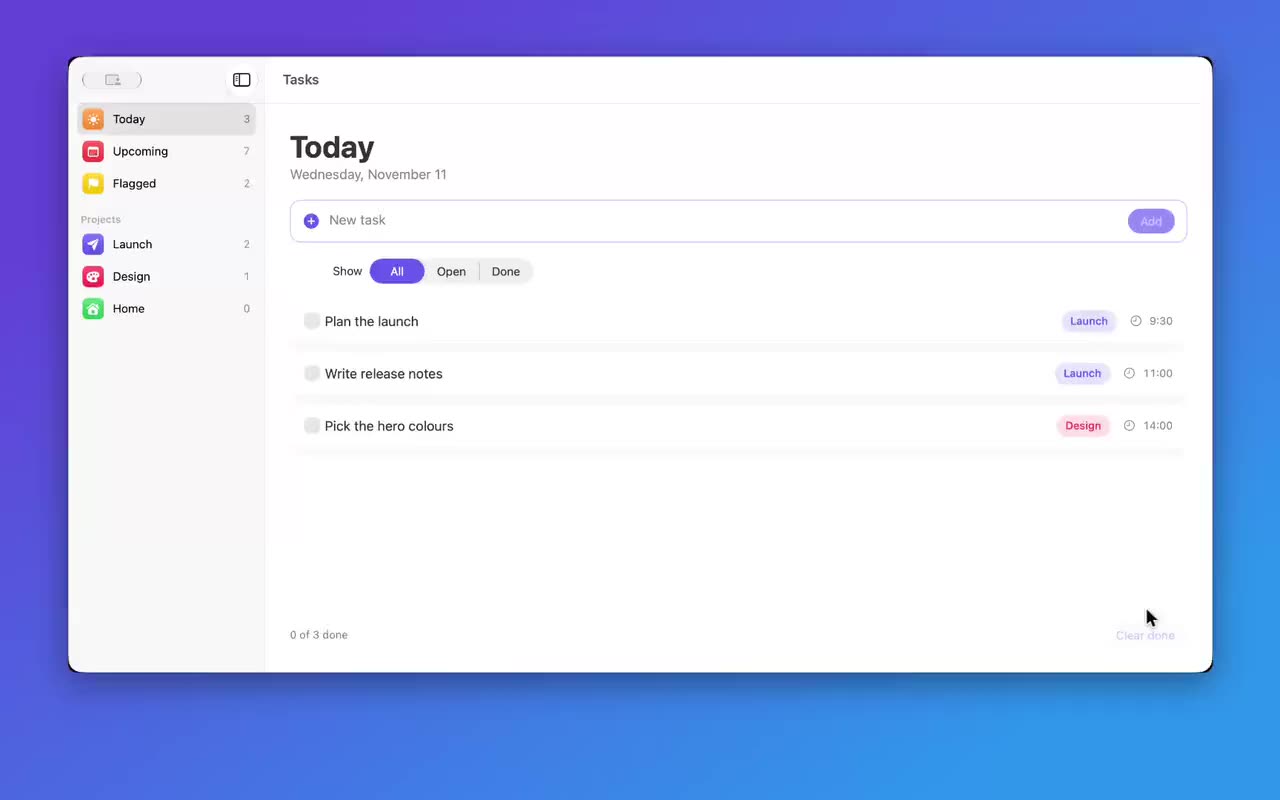
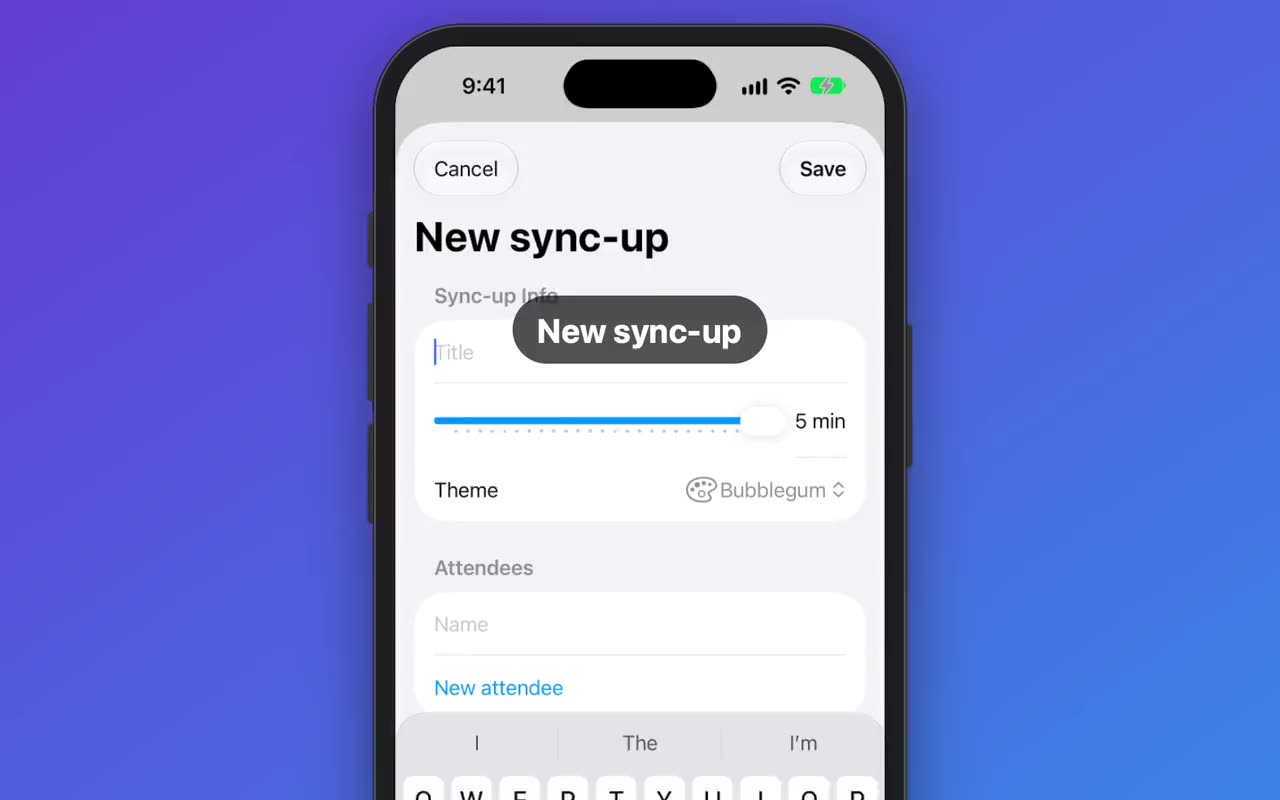
ShowTake does something the general recorders above do not try to do: it films the app you are building. Your coding agent (Claude Code, Codex, Cursor and other MCP clients) drives your iPhone app in the iOS Simulator or your Mac app's window through ShowTake's MCP tools. ShowTake records each take, logs every tap and click with its exact time and position, zooms on the element that was touched, redraws the pointer, and exports the result as an App Store preview, a vertical social cut or a 16:9 video with music and captions. Because each take is saved as a flow, a new build or language is a replay instead of a reshoot.
What it does not do, so you can rule it out quickly: it does not record your whole desktop, a browser tab, a webcam or a real iPhone, and it has no Android support. For tutorials with your face and voice, use Screen Studio, Loom or Cap.
The free plan covers filming, the music library, captions and a 16:9 export for X with a watermark. Pro ($9/month, $49/year or $129 once) adds every export preset, screenshots and the launch kit, 4K, batch replays and your own audio files. Details on pricing.
Paste into your agent after installing ShowTake
Film a 20-second demo of my app: open it, create an item, and show the
result. Add calm music and short captions, then export a 16:9 video for X
and an App Store preview for iPhone.The full process, from shot list to export, is in how to make an app demo video. For iPhone apps specifically, see how to record the iOS Simulator.
How to choose the right recorder
Film it with your agent
ShowTake is a Mac app with a built-in MCP server: your coding agent drives your app and ShowTake renders the zooms, captions and every export size. Free to try, with a watermark.
Common questions
What is the best free screen recorder for Mac?
The built-in Screenshot toolbar (Shift-Command-5). It records the full screen, a window or a selection with your microphone, and on macOS 27 Golden Gate or later it also records system audio. If you need more sources or streaming for free, use OBS Studio; for free share links for personal use, Cap.
Does Mac have a built-in screen recorder?
Yes. Press Shift-Command-5, or open QuickTime Player and choose File > New Screen Recording. Recordings are saved to the Desktop by default, and you stop them with the Stop button in the menu bar or Command-Control-Esc.
Which Mac screen recorder records system audio?
The built-in recorder does on macOS 27 or later (Options > Include System Audio). CleanShot X lists computer audio recording, and Screen Studio records your Mac's sound. On older macOS versions the built-in recorder takes only a microphone; our audio guide shows the free workaround.
Is OBS Studio a good screen recorder for Mac?
Yes, if you need its power: multiple sources, scenes, audio filters and streaming, all free on macOS 13 or later. For a single quick recording it is more setup than the built-in toolbar.
What should I use to record a demo of my iPhone app?
For a quick clip, the Simulator's own recorder or xcrun simctl io booted recordVideo works (all the methods). For a finished demo or App Store preview you will film again for each release, ShowTake lets your coding agent drive the app and exports Apple's sizes. You can download it free.
ShowTake for Mac
Let your coding agent film the demo
Your agent drives your iOS app in the Simulator or your Mac app; ShowTake records every tap and renders zooms, captions, App Store previews, screenshots and social cuts. Free to try, with a watermark.